
Data Storage
DataSets
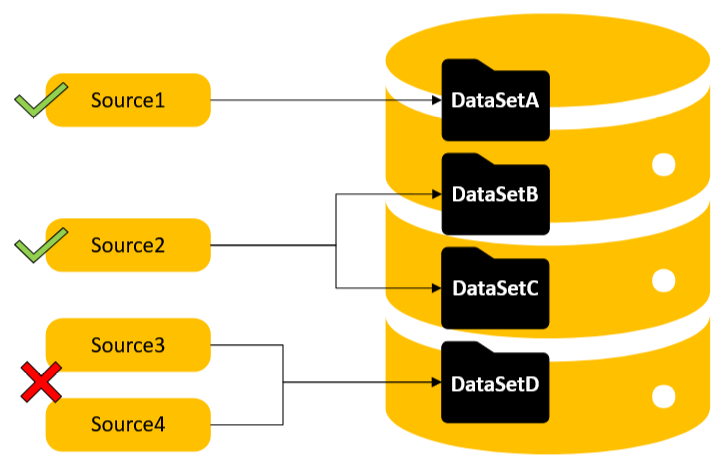
When data arrives at the Historian, it is stored in DataSets which act like folders organizing data by its various sources. As a best practice, a DataSet should only contain data from a single source or data stream. A source may write to multiple DataSets but never multiple sources to a single DataSet.
In our project, we have four distinct data streams all writing to their own respective DataSet: Hays, Travis, Comal, and Guadalupe. When opening the Historian tile, the user is is presented with these DataSets along with the default {Diagnostics}.
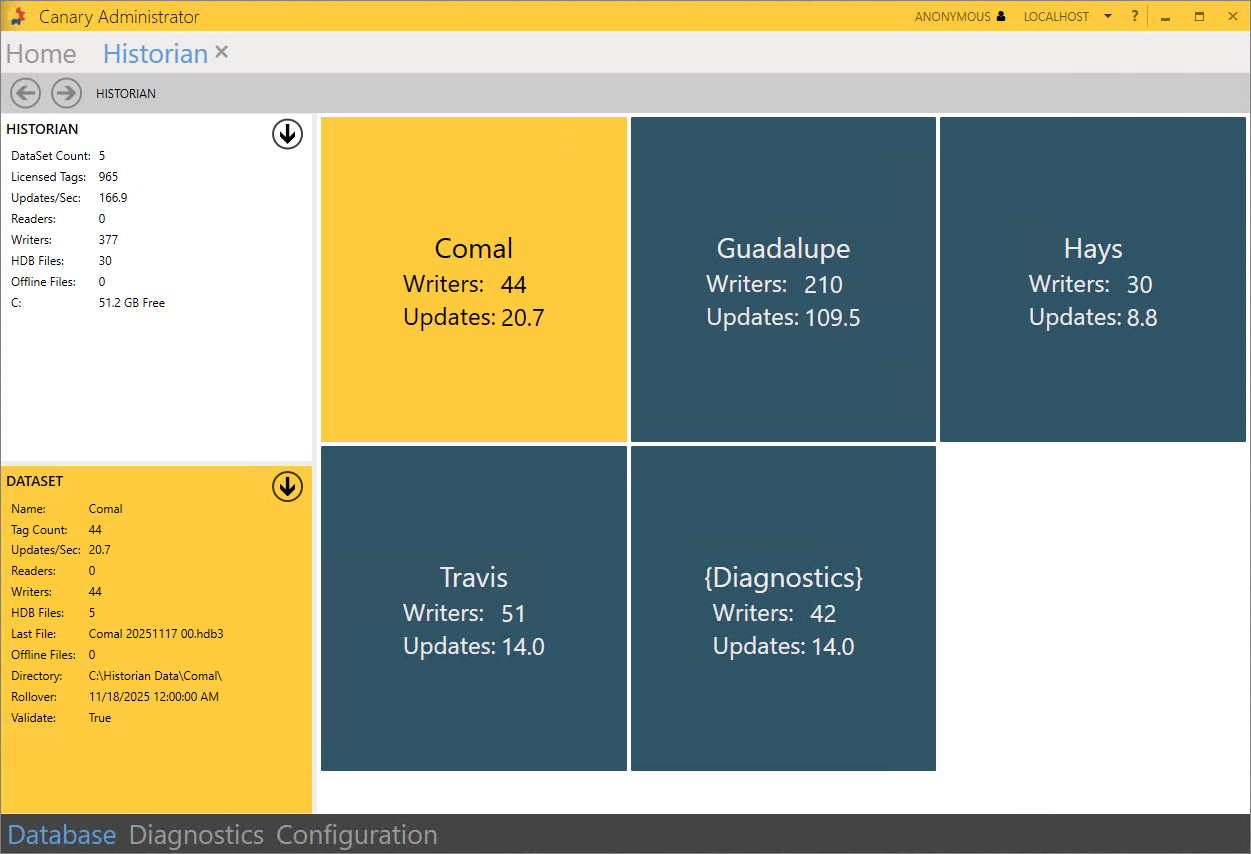
Each tile, if applicable, will display the number of Writers (tags being written to the DataSet), Readers (tags being read from the DataSet), and Updates (updates/second being written to the DataSet). With a tile selected, DataSet metrics are displayed in the bottom-left window.
HDB Files
Double-clicking or selecting the right arrow on the tile will open the DataSet to show the individual HDB (historical database) files. By default, the Historian creates a new file to write to each day at midnight in a process known as a Roll-Over, assuming data is actively logging. The size of each daily file varies depending on many factors, including data types, sample rate, change rate, and the total number of tags. Canary limits the size of these files to approximately 500 MB. If a file were to exceed this limit, the Historian would roll-over and create another file for the day. As it is best to avoid this scenario for long-term performance, Canary suggests limiting the number of tags which get logged into a single DataSet. 25,000 tags is a conservative limit, but this number can vary greatly depending on the factors previously listed.
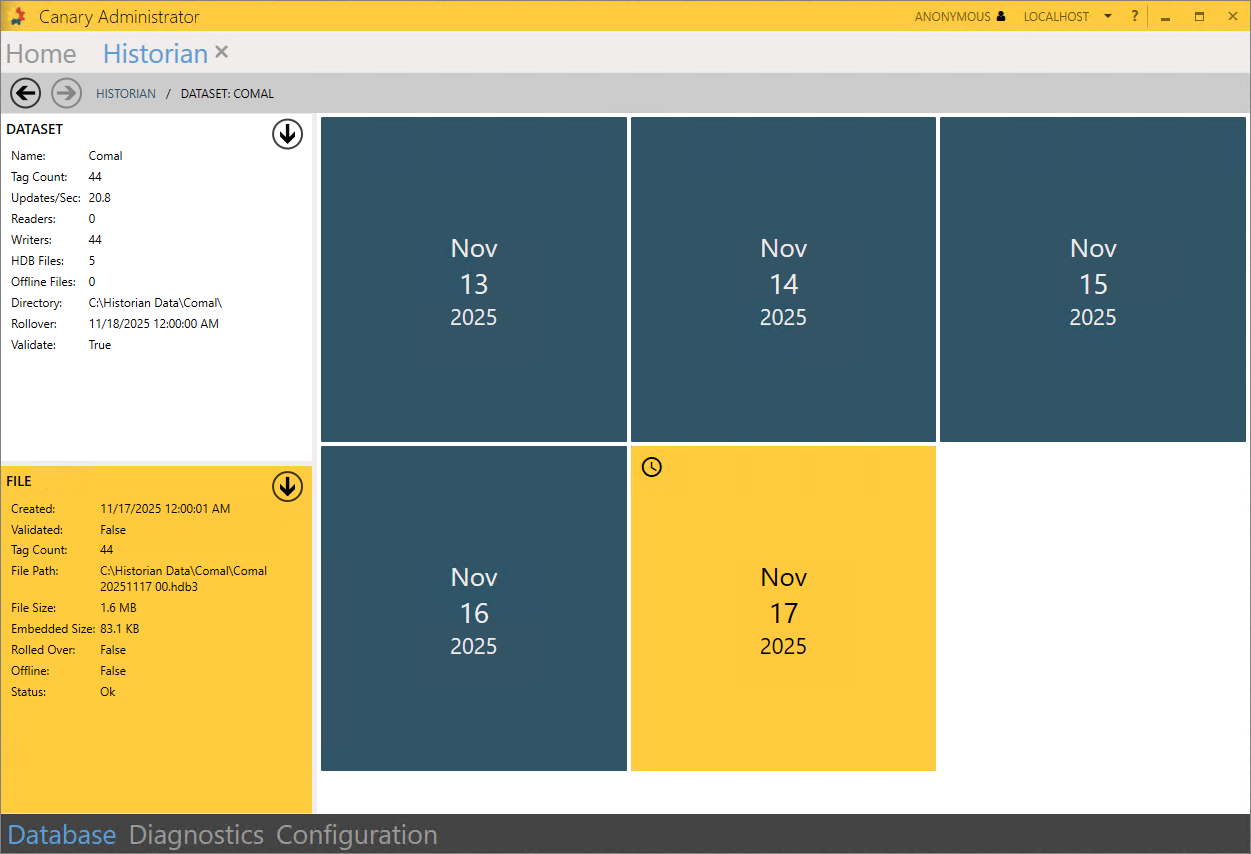
Selecting a file reveals its metrics in the bottom-left window including creation date, tag count, and size. A tile with a clock icon indicates the file has not been validated yet or has been modified since its last validation. After the Historian closes a file for writing, it goes through a validation process to ensure its stability. The last file of the DataSet will always be in this state if it is being actively logged to.
Tags and TVQ's
Opening an HDB file reveals the tags that are stored in the DataSet. Selecting a tag from the list on the left reveals its TVQ's (timestamp quality value) or updates on the right. Users can search for tags using keywords separated by spaces.
Canary logs data by exception whenever a tag's value or quality changes. Users can peruse through the updates using the vertical scroll bar on the right and the horizontal scroll bar at the top.
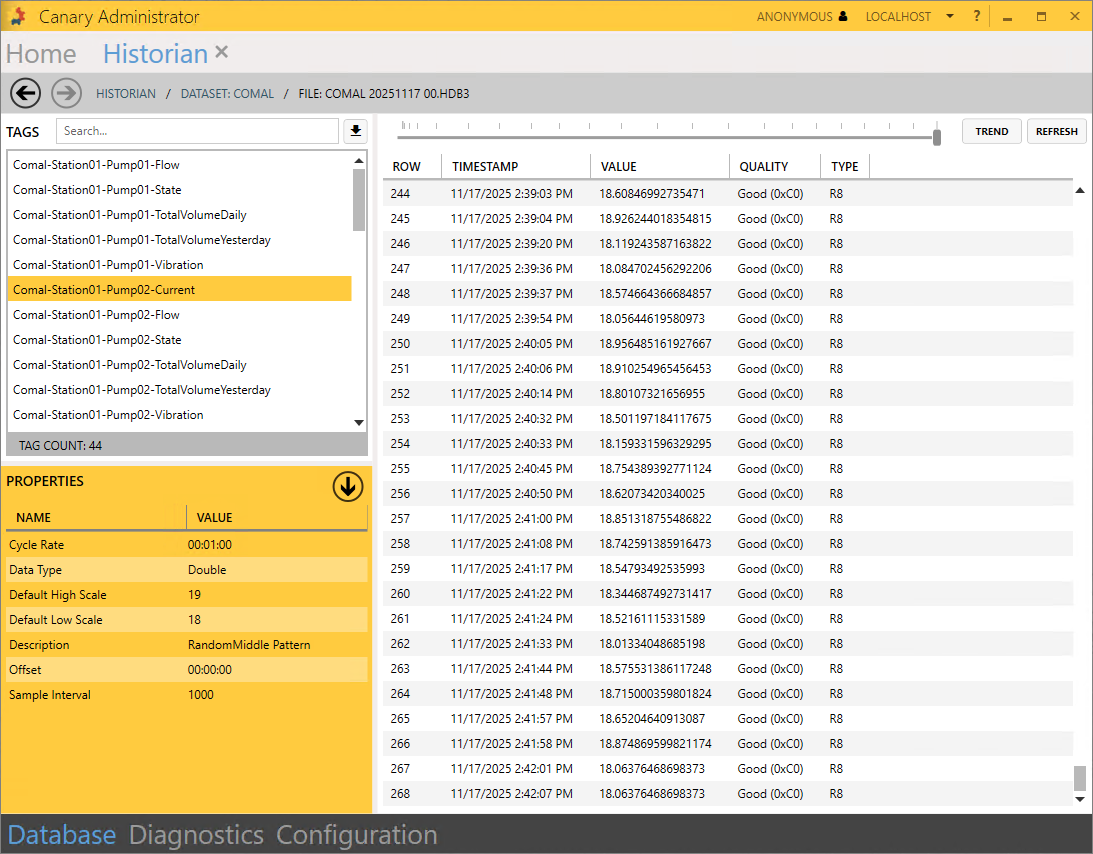
If a tag has properties attached to it that come from the logging source, they will appear in the PROPERTIES window.
Tag License Count
The number of tags that consume a license is determined by the tags that exist in the last file of each DataSet. If a tag is manually obsoleted from the Historian or removed from the Collector in such a way that forces the Historian to update its last file, the tag will no longer consume a license seat and its data will no longer be available to the end user. Its historical data will still remain intact, but will only be accessible through the Historian tile.
DataSet Configuration
Navigating to the Configuration tab at the bottom of the screen, the user can:
- create a NEW DataSet
With the exception of the OPC DA Collector (Logger Admin), Canary Collectors have the ability to create a new DataSet when logging begins. If using the Logger Admin, the user must first pre-create the DataSet from this screen.
- SCAN for preexisting HDB files to bring a DataSet online
- RENAME a DataSet
- or REMOVE a DataSet
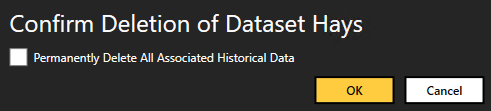
When removing a DataSet, the user has the option of retaining the data and only removing the Historian's knowledge of it, or deleting the the data altogether.
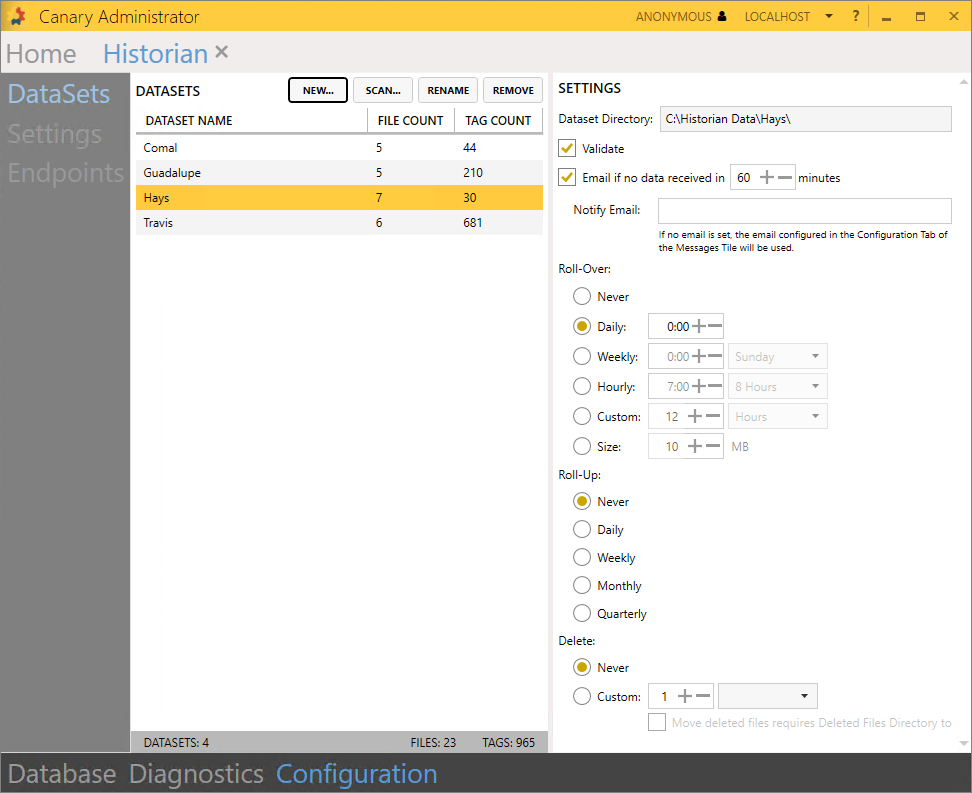
Selecting a DataSet on the left, the user can update its SETTINGS to send an alert if it does not receive data in xx minutes or set a retention limit to archive or delete data after certain period of time. The Roll-Over and Roll-Up settings should remain untouched unless directed otherwise by Canary.
 Print this page