
Diagnostic Health System
The Diagnostic Health System (DHS) tags referenced in this article were updated in v26.1 with the addition of more tags, modifying their previous naming convention, and the removal of others. A mapping of old to new tag name is located in the DHS Tag Mapping.csv file. A list of deprecated tag names is located in Deprecated Diagnostic Tags as of v26-1.csv. See Linking Tags at the bottom of the article if wishing to map the old tag names to their corresponding new ones.
The calculations built on top of the DHS tags reference the new naming convention and will remain in an errored state until Canary servers sending their diagnostic data to the Historian can be updated to v26.1.
Canary provides diagnostic health tags used for monitoring system performance and individual Canary service metrics. These tags are enabled through the Admin tile>Settings screen and are written to the {Diagnostics} DataSet.
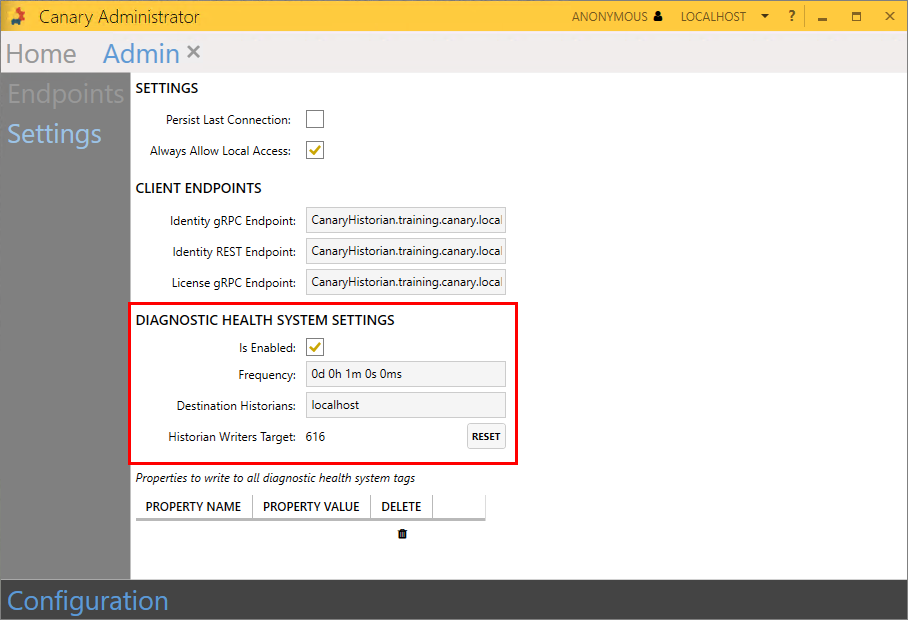
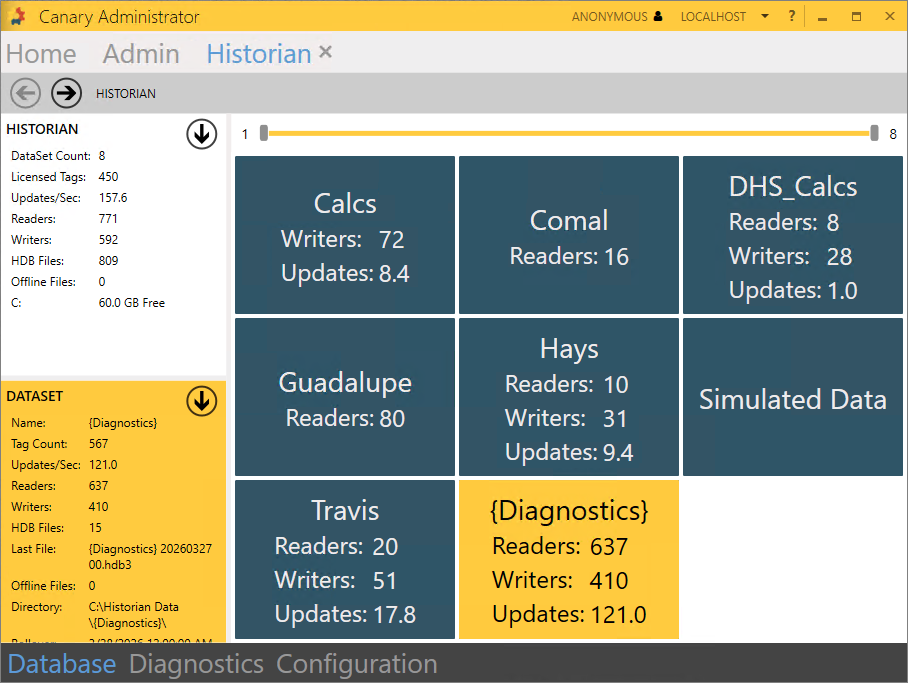
These tags give administrators insight into the overall health of the system and are useful for troubleshooting if issues may arise. By default, these tags are enabled for any server that contains the Historian service.
If wishing to create an Axiom application for system health visualization, the remainder of this article will walk the user through how to
- enable and route the diagnostic data to a central Historian
- build a Virtual View where Machine, Service, and Drive assets are defined
- create calculated tags for diagnostic KPI's
It is important to note that diagnostic tags themselves do not consume a tag license; however, calculated tags built on top of the diagnostic data do.
Enabling the Diagnostic Tags
Enable the Diagnostic Health System (DHS) tags on each Canary server. Collector and ancillary servers will need to have their diagnostic tags routed to the Historian server by updating the Destination Historians field.
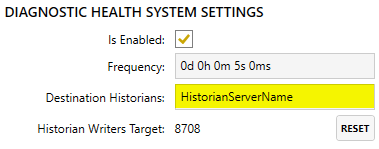
DHS tags are logged to the Historian using the Store & Forward (SaF) service. If an ancillary server, such as a client server hosting Axiom and Views, does not have a local SaF service, the user must run the install to include it. See Modifying the Installation for more details. Otherwise, diagnostic data will not be collected for these servers.
Building the DiagnosticHealthSystem Virtual View
The DiagnosticHealthSystem virtual view will be used to define a Canary Machine, a Canary Service, and a server's Drives. Defining these assets will allow the calculations and Axiom dashboard built on top of it to be dynamic.
- On the Historian server, open the Canary Admin client and navigate to the Views tile.
- Select the white down-arrow from the VIEWS panel in the top-left and CREATE NEW VIEW.
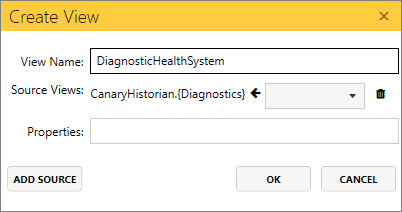
- Configure the View Name, DiagnosticHealthSystem (case-sensitive), and select the {Diagnostics} DataSet from the Source Views. Click OK.
- Select the PROPERTIES button on the right-side of the screen and IMPORT RULES.
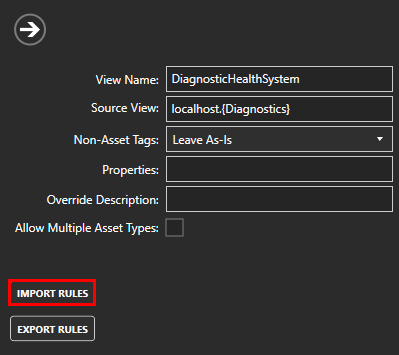
- Browse for %ProgramData%\Canary\Shared\Utilities\CanaryDiagnosticHealthSystem\DiagnosticHealthSystem Rules.txt.
- Update the Source View list to include localhost.DHS_Calcs. This is the DataSet where calculated tags will be written to in the next section. Source Views are separated by semi-colons (;).
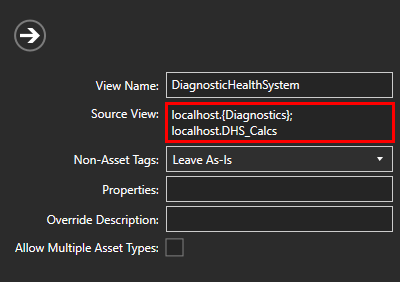
- Select the right-arrow to collapse the Properties menu then click CREATE.
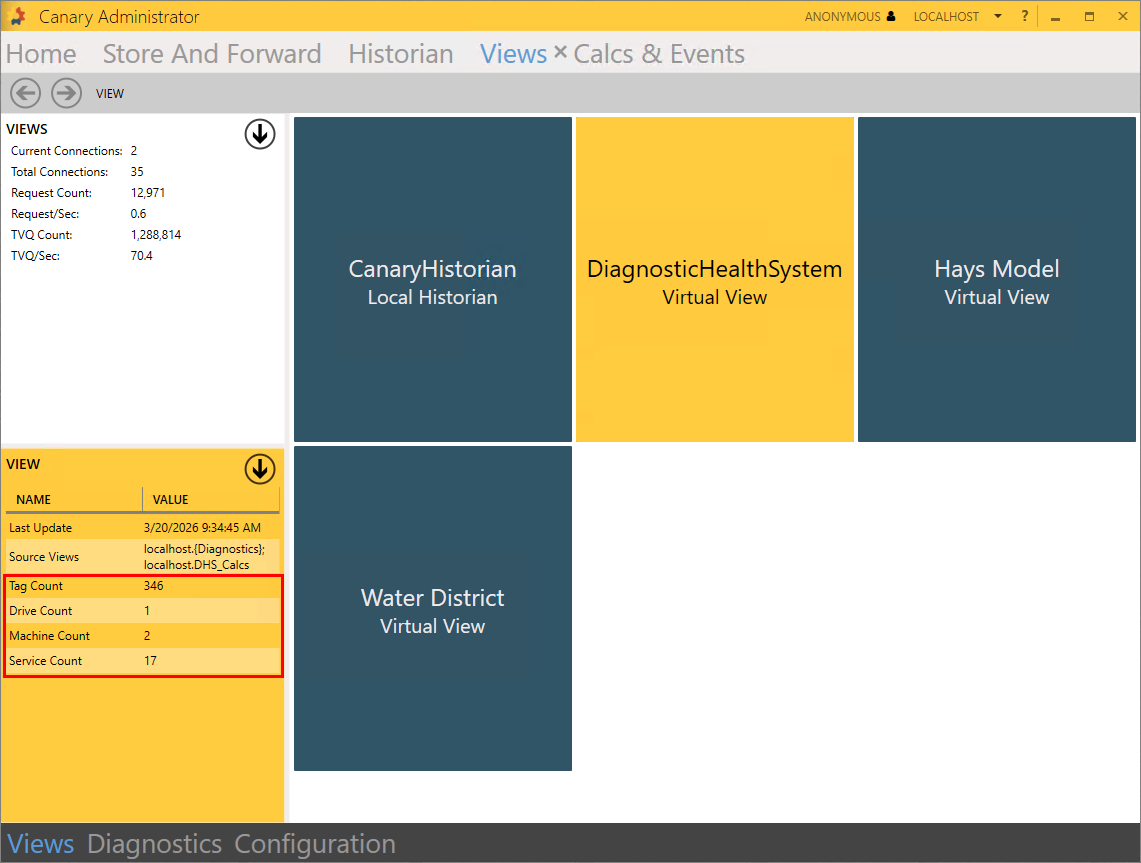
- CLOSE the edit screen. A tile for the DiagnosticHealthSystem view should appear with its information displayed in the VIEW panel in the bottom-left. The tag count and asset count will vary depending on the number of Canary servers and services installed.
Creating Calculated Tags
The calculated tags created here are used to determine a Health Score for a Service and a Machine. These, in turn, will be used to display alerts within the Axiom application created in the next section. Calc tags will be written to the DHS_Calcs DataSet within the Historian.
- Open the Calcs & Events tile and click the MORE button on the right side.
- Select Import Jobs and CHOOSE FILE.
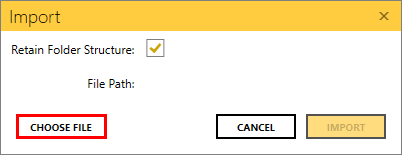
- Browse for %ProgramData%\Canary\Shared\Utilities\CanaryDiagnosticHealthSystem\DHS_CalculationsExport.json then click IMPORT. A dialogue screen should appear indicating if the import was successful.

- Select the DHS folder then click the START button
Some of the jobs will be in an Error state. This can happen for several reasons: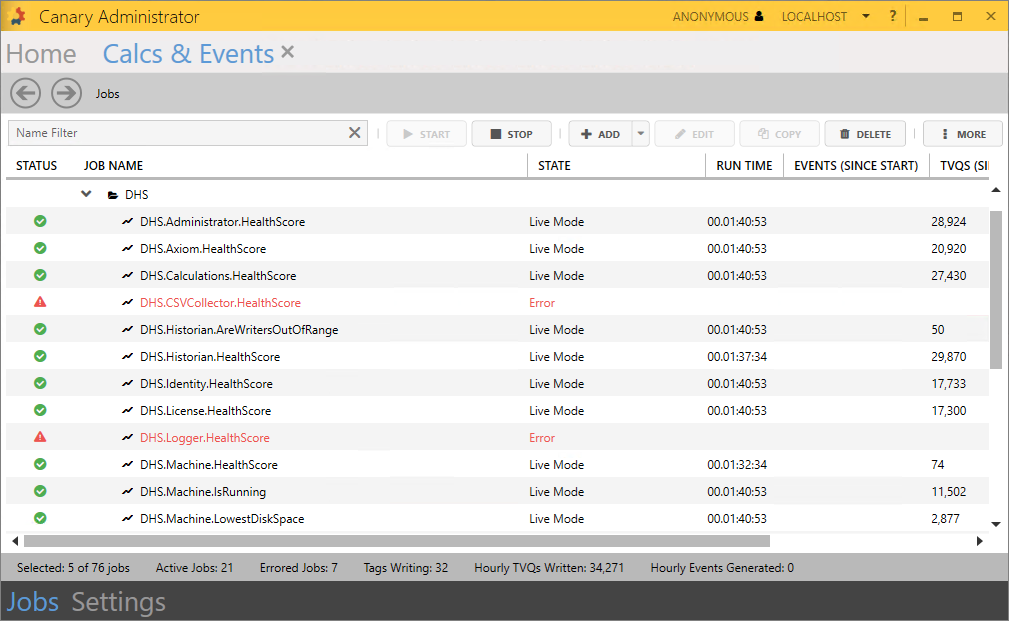
- The Service for which the job is built on is not used/installed. These jobs can be deleted.
- The job is dependent upon another job which is still backfilling. These jobs will eventually start once their dependent jobs reach Live mode. This is expected and may take a few minutes.
- The job cannot find the input tags needed for its calculation because the Collector/Client server from where the DHS tags originate is running a version prior to v26.1. These servers will need upgraded to v26.1+ to resolve the error(s).
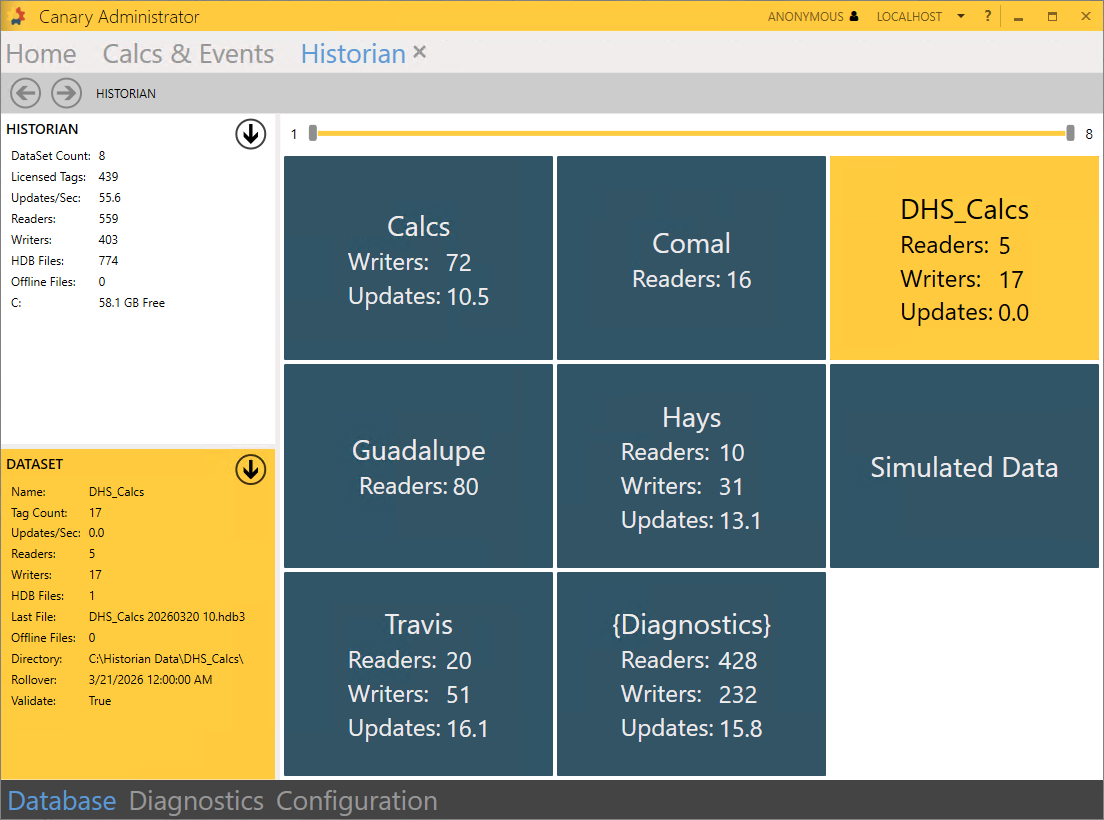
- Verify the DHS_Calcs DataSet appears in the Historian. These tags do consume a tag license.
DHS Axiom Dashboard
Once calculations are backfilled and the DiagnosticHealthSystem virtual view has been recached with the new DHS_Calcs, all of the necessary components are in place to populate the Axiom application.
Copy the DiagnosticHealthSystem.AxiomApp2 file from %ProgramData%\Canary\Shared\Utilities\CanaryDiagnosticHealthSystem and paste it into %ProgramData%\Canary\Axiom\Files\[folder].
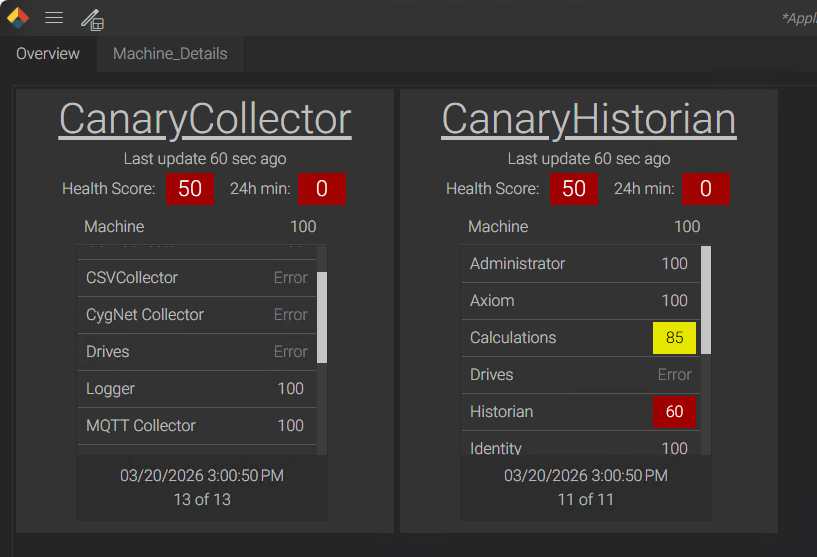
The first screen is an Overview displaying each Canary server and its Health Score.
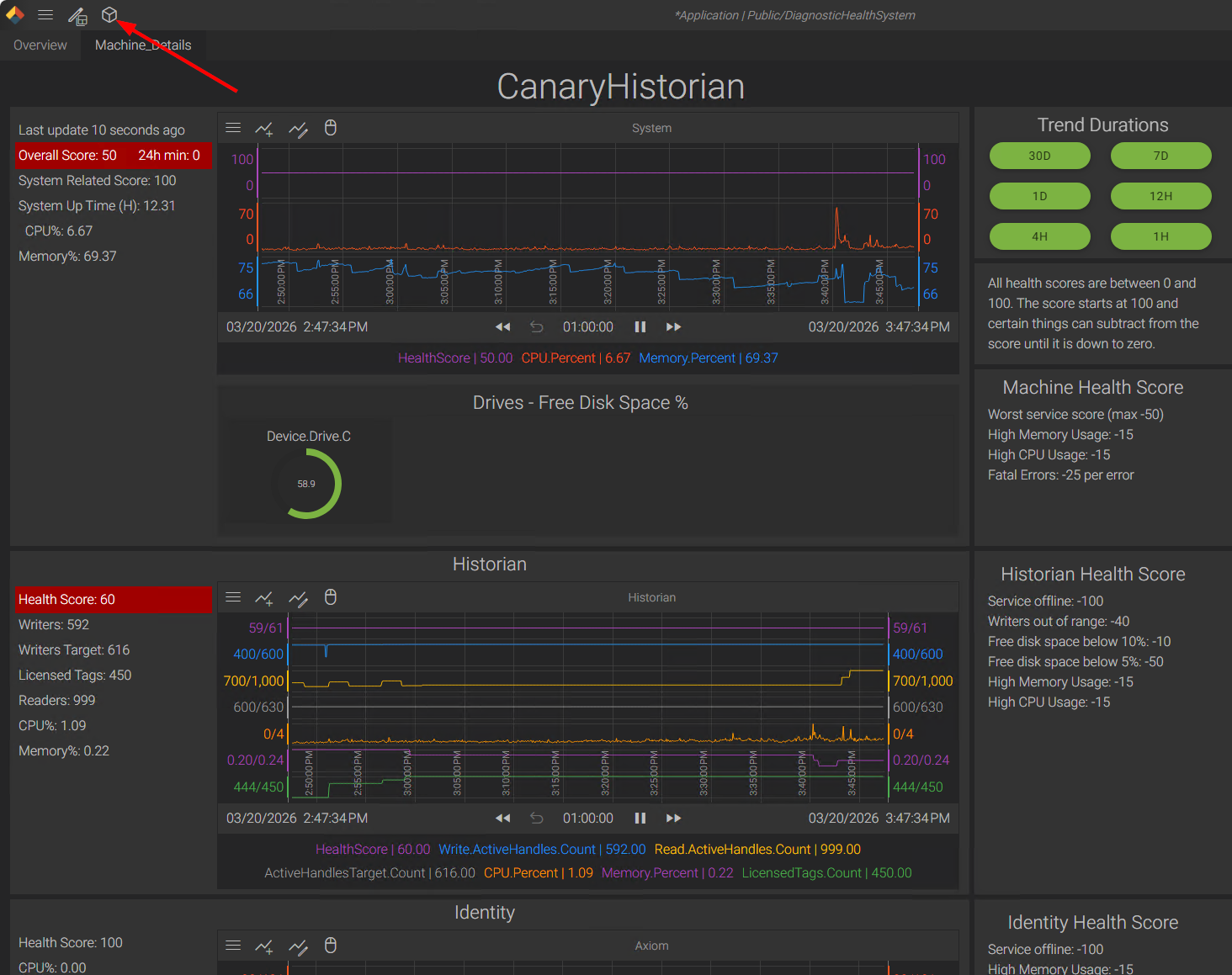
The Machine_Details screen contains a panel for each Service type for a given Machine. The user will need to first select a Machine instance using the asset icon at the top of the screen.
Linking Tags
If upgrading from a version previous to v26.1, any Axiom dashboard, calcs, and events built using the DHS tags will no longer receive updates. Users must adapt their current DHS solution to use the new tag names or use the solution offered in the article above.
If wanting to map the old tag name to the new tag name to retain history, the DHS Tag Mapping.csv file attached at the top of the article can be used to link tags. Strings contained within [square brackets] must be updated to match your environment. Not all tags have an equivalent new tag name. A list of deprecated tags is provided in Deprecated Diagnostic Tags as of v26-1.csv.
 Print this page