
Module Installation & Configuration (Canary v24+ and Ignition v8.3)

The following article is used to configure Canary's Historian Module for Ignition v8.3+. Users must be running v24.0+ of Canary software.
Ensure that TLS 1.3 is enabled both on the Historian server and Ignition gateway.
The Canary Historian module for Ignition by Inductive Automation acts as a Storage Provider used to both write data from Ignition projects to the Canary system as well as read historic and last known values from Canary back to Ignition. Inasmuch, the module has a Collector and Provider side which work independently of each other to accomplish both tasks.
Recommended Installation Architecture
As a best practice, Canary's historian components should be installed on their own server apart from the Ignition gateway. The gateway should contain the module along with Canary's Store & Forward and Admin services. The Store & Forward service is responsible for transporting data to the Canary Historian server and buffering data in the event the connection between the two is broken.
As far as providing data back to Ignition, the module will establish a connection to Canary's Views service which is typically installed local to the Historian. Below is a simplistic architecture demonstrating the data flow and the Canary components involved.
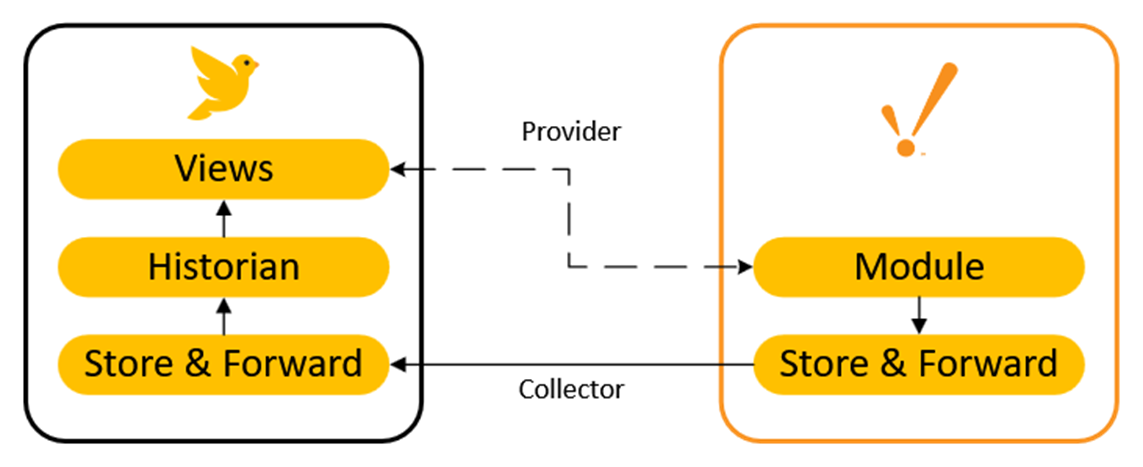
The remainder of the article goes into the installation and configuration changes needed for the module and assumes the Historian and its components are already installed on a separate server. If the Historian is not installed, see Installing the Canary System.
Data Collection Configuration
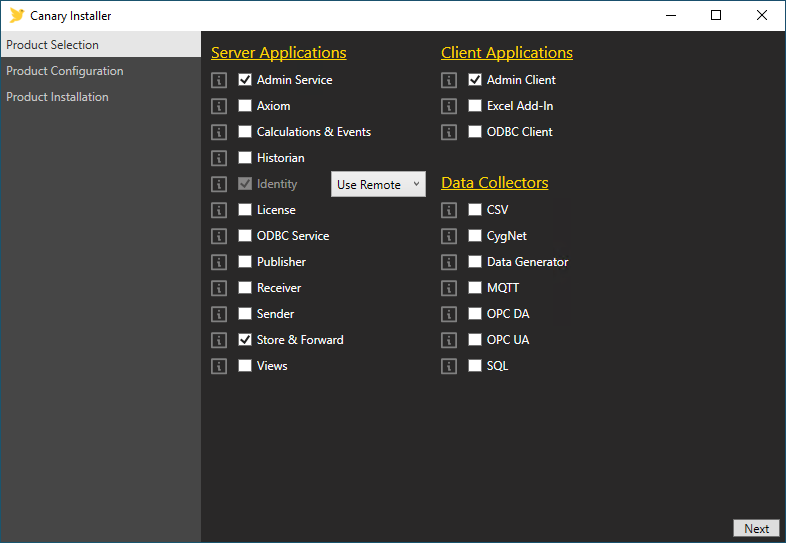
- On the Ignition gateway, run the CanaryInstaller.exe and select Admin Service, Identity (Use Remote), Store & Forward, and Admin Client. Click Next.
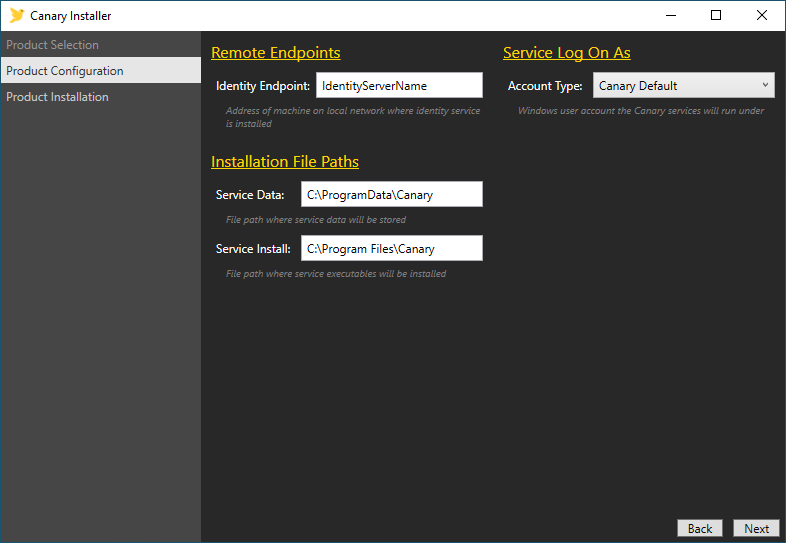
- Set the Identity Endpoint to the machine name of where the Identity service is installed. This is almost always the Canary Historian server. Configure the installation locations or take the defaults. Click Next to review the components to be installed, then Install.
- Open the Ignition Gateway and install the Canary Historian module from the Platform>Modules screen.
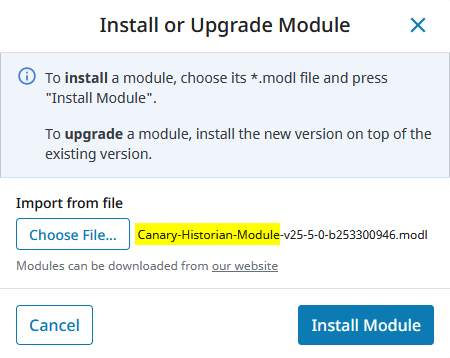
The module will remain inactive until the Gateway is restarted.

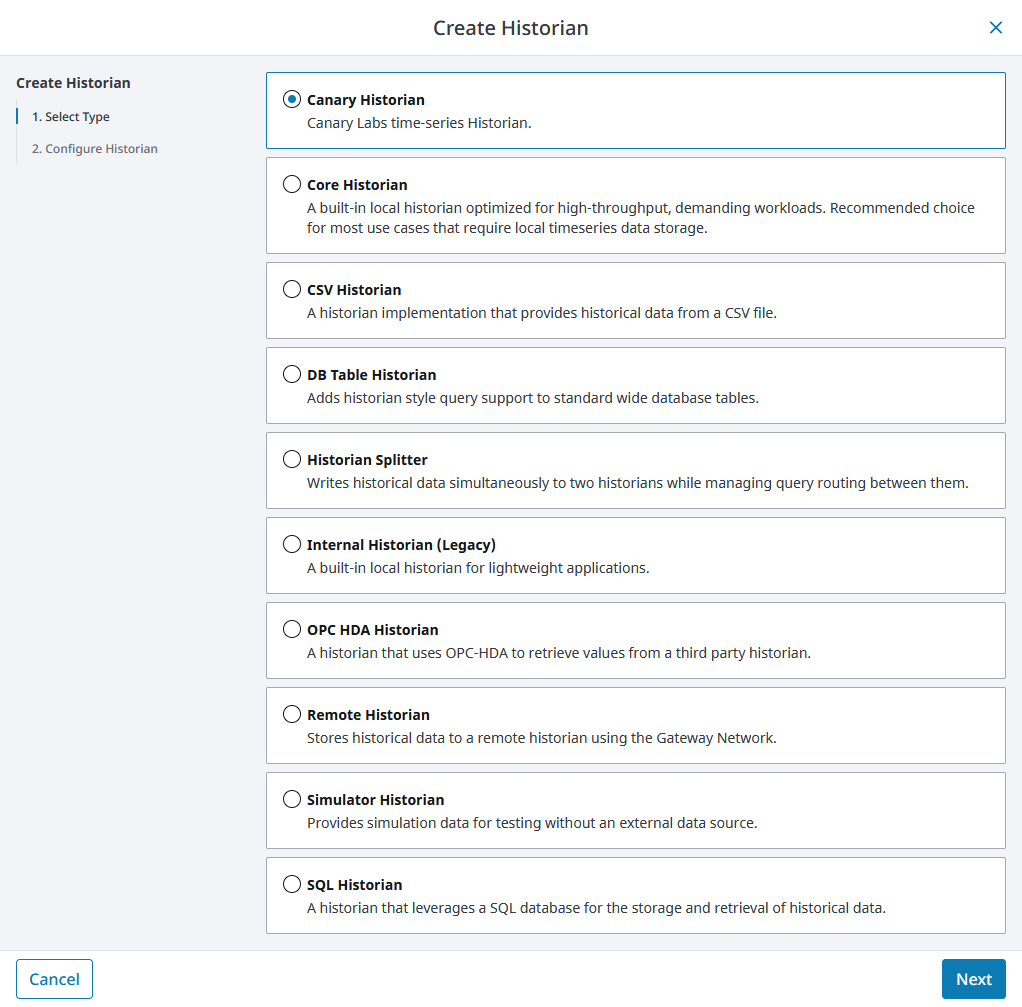
- Once the Gateway is restarted, navigate to the Services>Historian screen and select CREATE HISTORIAN+. Select Canary Historian from the list and click Next.
- Configure the GENERAL SETTINGS.
The Name will appear as a Storage Provider within the Ignition Designer when history is enabled for a tag.
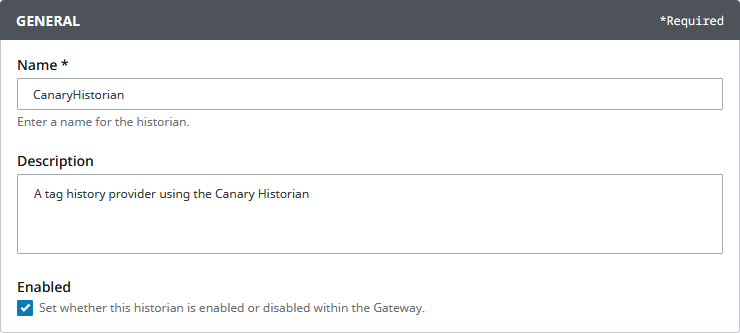
If coming from Ignition 8.1, the same name that was used for the Canary Collector can be used here. In this way, tags will not need to be updated to use a new Storage Provider. Data collection should resume as soon as the module has been configured.
If the Canary Provider used a different name than the Canary Collector, a separate historian configuration will need to be added if wishing to use the previous name to maintain backwards compatibility.
- Configure the COLLECTOR SETTINGS.
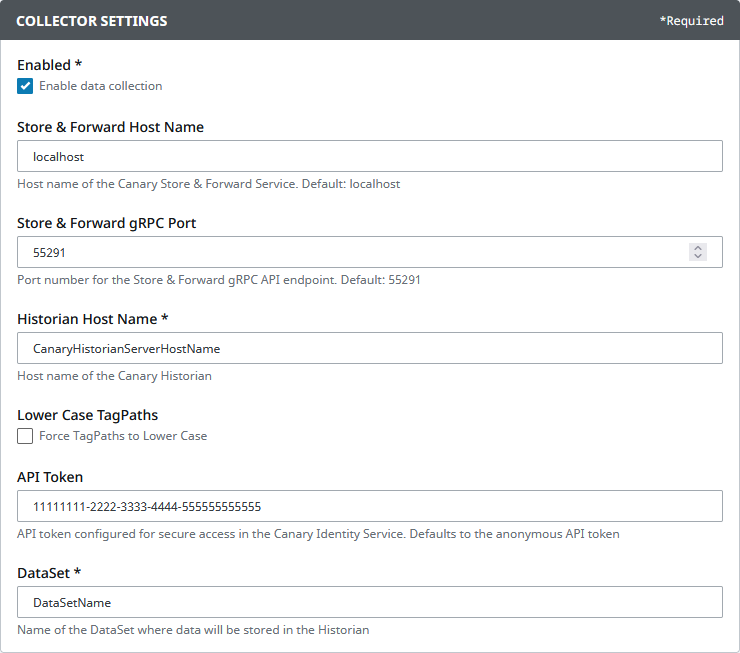
- Enabled - enables/disables the module to collect data
- Store & Forward Host Name - host name of the SaF service used to transport data to the Canary Historian. This should almost always be 'localhost' if following best practices.
- Store & Forward Port - 55291, port number of the SaF service the module will connect to
- Historian Host Name - host name of the destination Canary Historian server where data will be stored. Multiple destinations can be listed using a comma to separate them (i.e. CanaryHistorian1, CanaryHistorian2)
- Lower Case TagPaths - (rare) forces all tag paths to lower case
- API Token - token used for secure read/write access to the Historian when Tag Security is enabled. Tokens are generated and managed within Canary's Identity service. The Canary user linked to the token should have ReadWrite access to the root View within the Identity>Security>Tag Security screen.
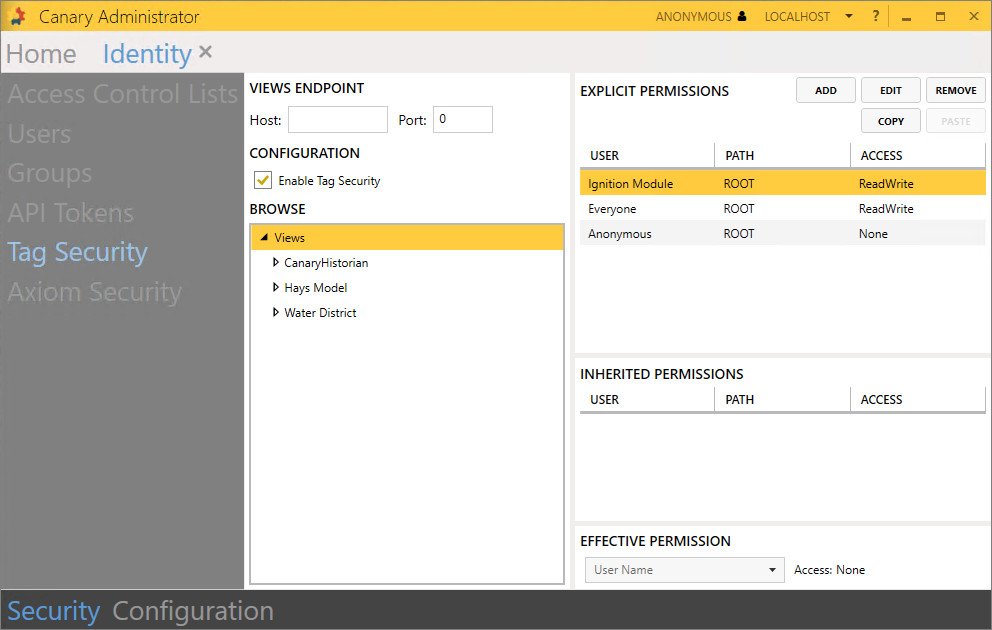
See How to Create an API Token for more information. (If no token is provided, the Collector will default to the Anonymous token and require the Anonymous provider be enabled in the Identity>Configuration>Providers screen.) - Read/Connect/Write Timeout - (rare) timeout settings the module uses to establish a connection with the SaF service. Do not change unless directed otherwise.
- DataSet - name of the DataSet where data will be stored in the Historian. The COLLECTOR will only send data to one DataSet.
If the number of tags that need historized exceed 25,000 (this is a conservative limit and can be incremented), Canary recommends enabling Dynamic DataSets on either the Collector or Historian to prevent database file sizes from reaching their 500 MB limit. In this way, new DataSets are automatically generated as more tags are historized (DataSet, DataSet2, DataSet3, etc.)
Alternatively, the user can create a new Ignition historian for each additional DataSet. Multiple Collectors should NOT write to the same DataSet.
- If only needing to configure the COLLECTOR, select CREATE HISTORIAN. Otherwise, proceed to the PROVIDER SETTINGS.
Provider Configuration
- Configure the PROVIDER SETTINGS.
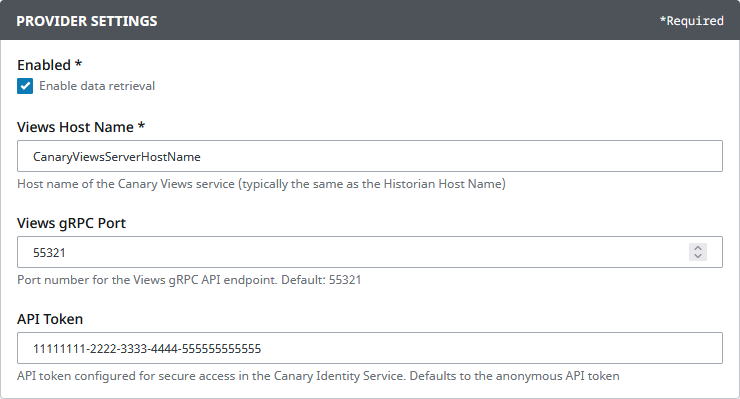
- Enabled - enables/disables the module to retrieve data from the Canary Historian
- Views Host Name - host name of the server where the Views service is installed, typically same as the Canary Historian host name
- Views Port - 55321, port number of the Views service the module will connect to
- API Token - token used for secure read/write access to the Historian when Tag Security is enabled. This can be the same token that is configured in the COLLECTOR SETTINGS. (If no token is provided, the Provider will default to the Anonymous token and require the Anonymous provider be enabled in the Identity>Configuration>Providers screen.)
- Select CREATE HISTORIAN.
Enabling Tag History
With the module created, users can enable tag history within the Designer and use the Canary Historian as its Storage Provider.
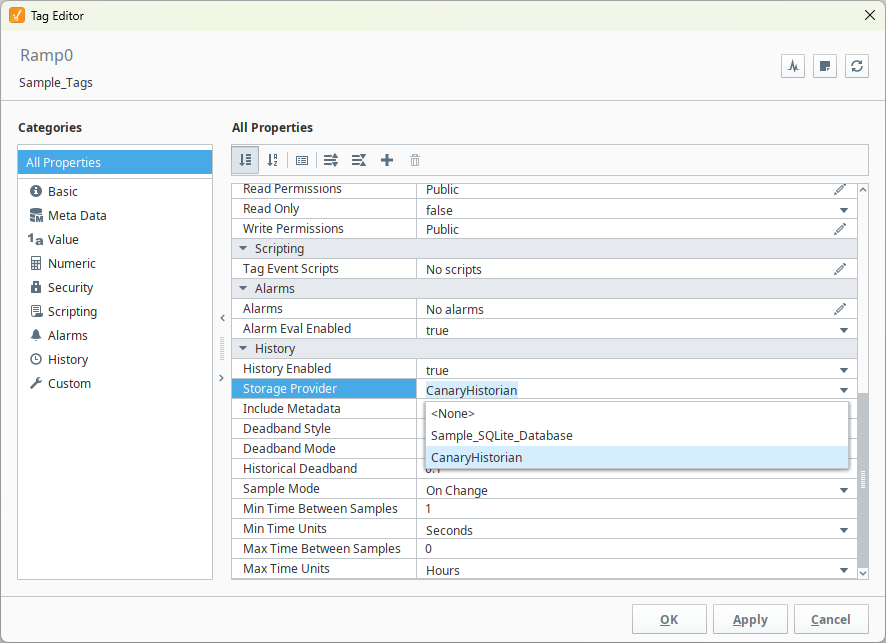
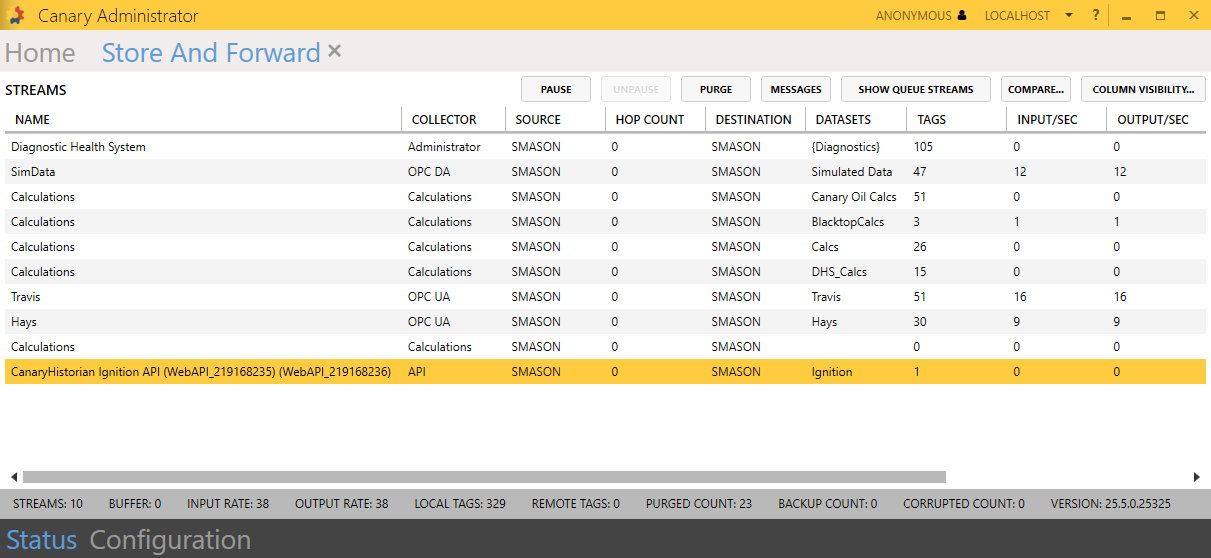
As soon as an enabled tag updates, a data stream will appear in the local Store & Forward service with the name '[historianName] Ignition API'. Tags are not added to the data stream until there is an update based on their Sample Mode and Deadband settings.
Metadata
Metadata can be stored if enabled. The module supports the following properties:
- Documentation (This gets translated into 'Description' when stored in Canary as the Description property is used in other parts of the software.)
- Tooltip
- Engineering Units
- Engineering Low Limit
- Engineering High Limit
Custom properties can be added, but they cannot be stored until one of the properties above receives an update.
Retrieving Tag History
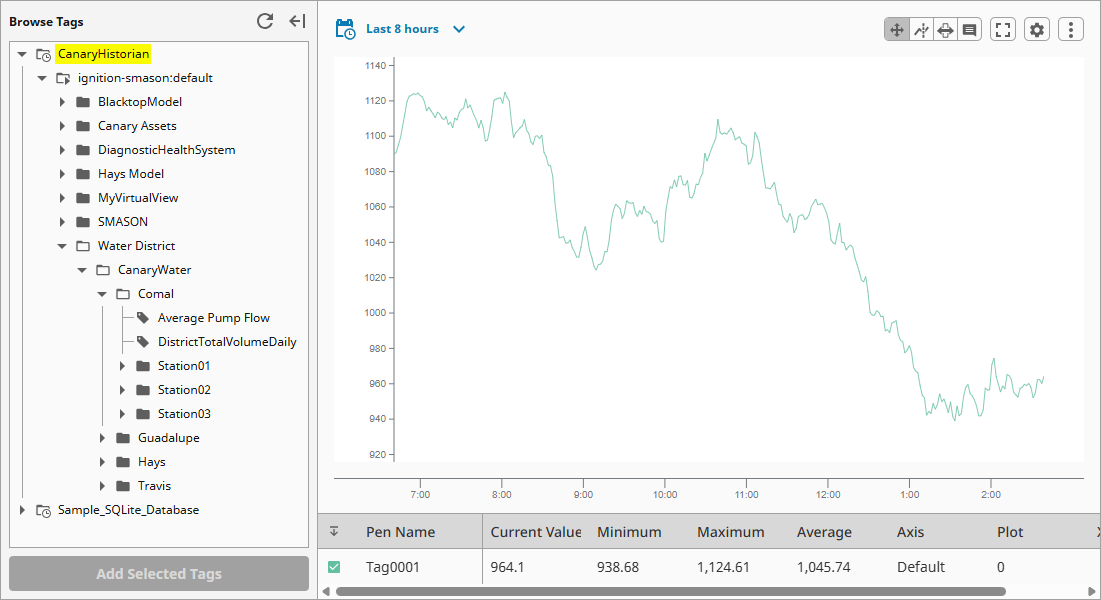
With the PROVIDER section enabled, users can link components to their Canary historical tag provider.
Scripting
When needing to use the Canary tag path in scripting, the following example can be used:
histprov:canaryHistorian:/sys:gatewayName:/prov:default:/tag:viewName/Branch1/Branch2/MetricTagName- The above example indicates canaryHistorian is the name of the Ignition historian as configured within the GENERAL SETTINGS of the module.
- gatewayName is the name of the Ignition gateway
- viewName represents the top-level historian or virtual view in the Views service followed by any number of subsequent branches and the metric tag name.
Aggregates
Ignition offers several aggregates for viewing data based on intervals of time. These Ignition aggregates are linked to Canary aggregates as follows:
Ignition Aggregate Name |
Canary Aggregate Name |
Time-weighted Average |
TimeAverage2 |
Average |
TimeAverage2 |
Min/Max |
Minimum/Maximum |
Closest Value |
EndBound |
Last Value |
EndBound |
Basic Average |
Average |
Sum |
Sum |
Minimum |
Minimum2 |
Maximum |
Maximum2 |
Duration On |
DurationInStateNonZero |
Duration Off |
DurationInStateZero |
Count On |
CountInStateNonZero |
Count Off |
CountInStateZero |
Count |
Count |
Range |
Range2 |
Variance |
VariancePopulation |
Standard Deviation |
StandardDeviationPopulation |
Percent Good |
PercentGood |
Percent Bad |
PercentBad |
Redundant Ignition Gateways
When using a “cold” or “warm” backup Ignition gateway, duplicate the same configuration on the server as the master. If the master should fail over to the backup, data ingress/egress should resume with trivial interruption.
DISCLAIMER!
If data has been buffering for a significant* amount of time when the master gateway fails over to the backup, there is a risk of data loss. This occurs due to historical inserts when the master comes back online and attempts to flush its buffered data. An HDB file has a maximum size limit of 2 GB. If the amount of buffered data causes the HDB file to exceed this limit, the file should be taken offline so the remaining buffered data can flush and be inserted into another HDB file, or the buffered data must be purged from the Store and Forward service. To avoid this scenario, Canary highly recommends configuring the Historian to send alerts when DataSets stop receiving updates, allowing connectivity issues to be resolved before the buffer grows too large.
*The amount of time that data can buffer without risking data loss depends on the average size of a daily HDB file within the DataSet(s). The larger the file, the less time data can safely buffer and still be inserted without issue.
Number of Days data can safely buffer = 2GB/(X*4)
X = the average HDB file size in GB
4 = safety factor because historical inserts are less efficient than appends
EXAMPLE: The daily HDB file size of a DataSet is 200MB.
2GB / (0.2GB * 4) = 2.5 days to correct problem and get data flowing from the master gateway to the Historian.
 Print this page