
0
Screen Control (version 26)
Knowledge Base / Version 26 / Client Tools / Axiom / Applications

- Screen title and navigation tab
- Edit screen name
- Hide current screen from navigation
- Add new screen
- Copy screen
- Edit screen script*
- Set asset instance
Properties
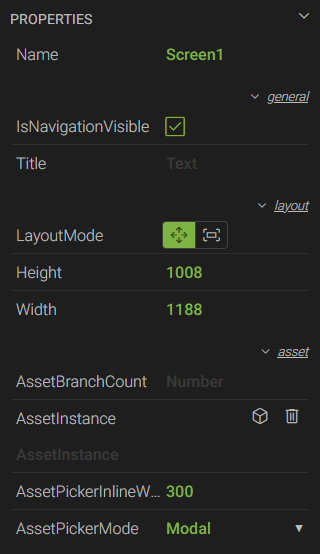
- *Name - a unique name used to reference the control in script
- IsNavigationVisible - enables/disables the visibility of the navigation tab
- Title - displays descriptive text in the navigation tab when an application contains multiple screens
- LayoutMode - sets the size of the screen based on the Height and Width properties (Move) or fills the entire canvas within the browser window (Fill)
- Height - the height of the screen in pixels. Setting the Height to 0 will fill the vertical canvas space within the browser window.
- Width - the width of the screen in pixels. Setting the Width to 0 will fill the horizontal canvas space within the browser window.
- AssetBranchCount - specifies the number of branches displayed in the asset picker
- AssetInstance - sets the screen to an asset instance
- AssetPickerInlineWidth - specifies the width (pixels) of the inline asset picker
- AssetPickerMode
- Modal - the asset icon will appear on the tool bar next to the Redo button to switch between assets

- Inline - a column of asset instances will appear on the left-hand side of the screen to switch between assets
- None - no picker is presented
- Modal - the asset icon will appear on the tool bar next to the Redo button to switch between assets
- *OnBeginAssetChange - used to trigger a script to run before the asset is changed
- *OnEndAssetChange - used to trigger a script to run after the asset has changed
- *Script - allows the user to edit the script. Scripting is written in C#. Documentation for scripting can be found by clicking the 'Edit Script...' link and clicking on the '?' icon in the top-right corner of menu.
* These properties are only available to Canary users listed on the Axiom>Script access control list within the Identity tile.
 Print this page