
How to Configure the Ignition Collector (version 25)
Latest tested and supported version of Ignition: 8.1.52
If using 8.1.31 or 8.1.32, the provider name must match the collector name. A bug was introduced in 8.1.31 (and fixed in 8.1.33) that prevented the module from working properly without the names being the same.
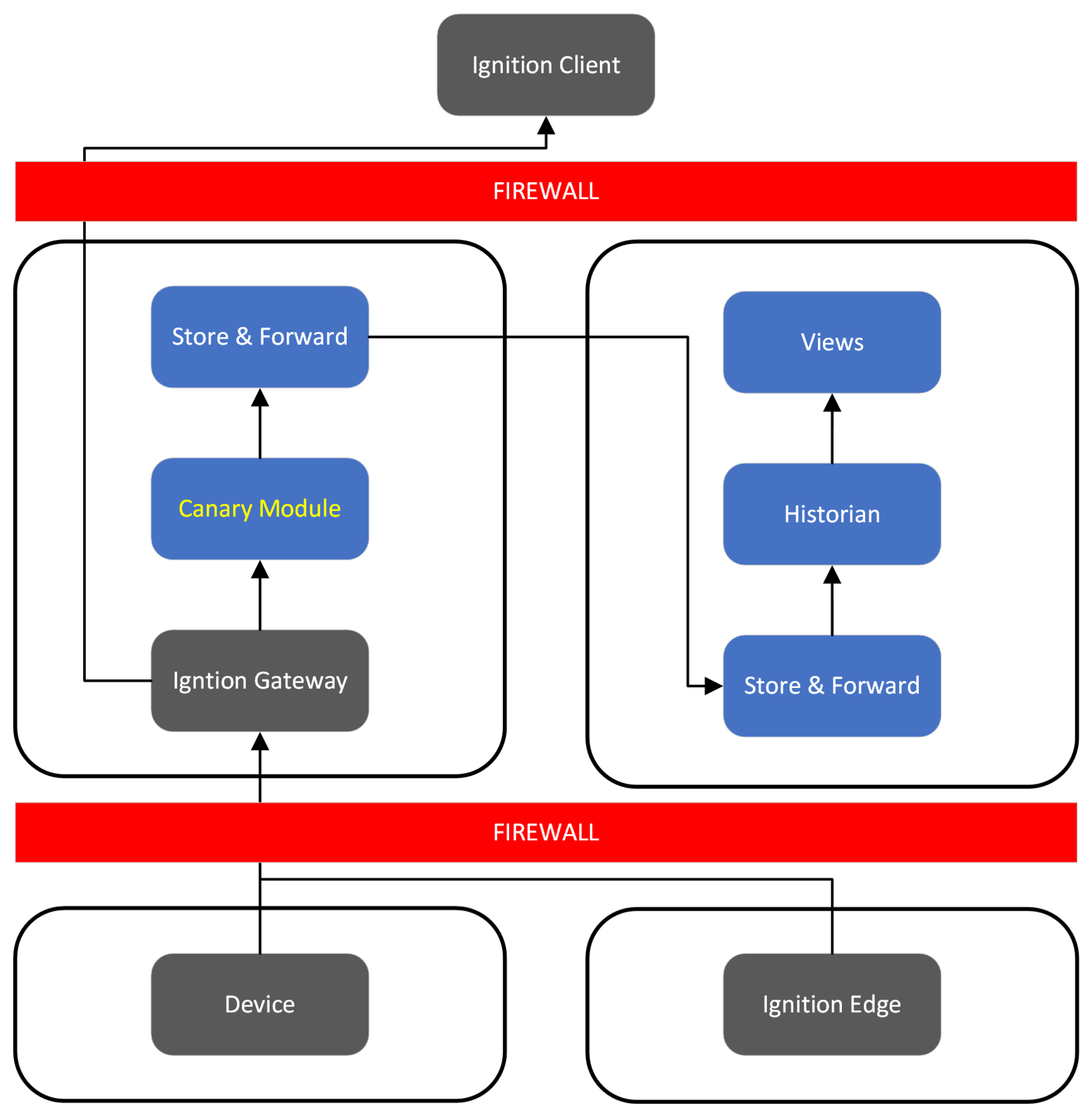
Created by Inductive Automation, Ignition is a software platform that acts as an HMI, SCADA System, and MES. The Canary Module for Ignition can be used to both write data from Ignition 8 projects to the Canary System as well as read historic and last known values from Canary and publish them to Ignition 8 Vision/Perspectives projects. The following explains how to write data from Ignition.
Install Canary Services
- Use the received download link from a Canary representative to download the Canary Installer.
- Run the file CanaryInstaller-*.*.*.exe with elevated privileges on the Ignition Gateway. It is recommended to install the SaF service local to the gateway to utilize Canary's buffering capabilities in case there is a break in communication with the Historian.
- Install the Admin Service, Identity (local or remote*), Store & Forward, and the Admin Client. Select Next.
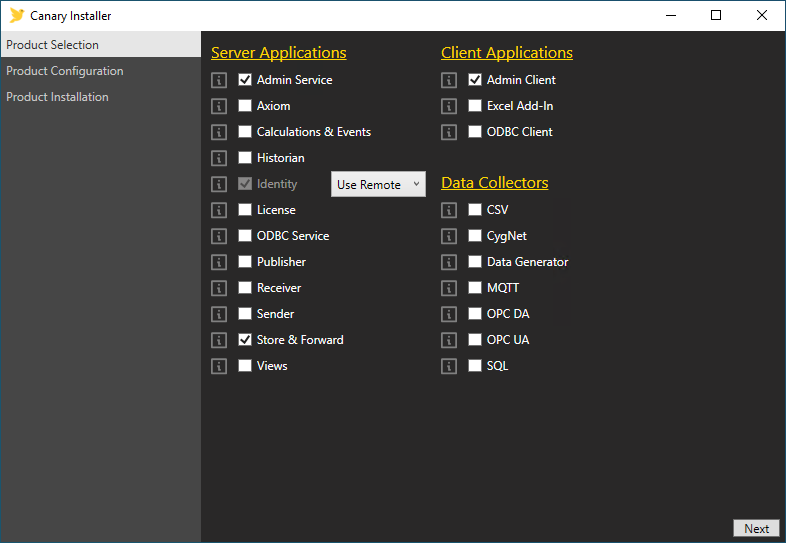
*If using best practices, the Identity service should be remote from the Ignition Gateway, installed along with the Historian. The user can specify the server location of the Identity service on the next screen if choosing the remote option.
- Specify the server location of the Identity service if choosing the remote option, then choose where the software will get installed.

- Select Next then Install on the next screen to complete.
Install Canary's Module for Ignition
- Download the free module from here.
- Launch the the Ignition Gateway web application, select Config from the left menu, then select Modules.
- Scroll down to the bottom of the page. Select Install or Upgrade a Module..., then select Choose File and upload Canary's module for Ignition.
- Select Install.
Configure Canary's Module for Ignition
- Within the Ignition Gateway configuration screen, scroll to the bottom of the left menu, select Configure Collectors under the CANARY subheading.
Select Create new Collector and configure Canary as a Tag Storage Provider within Ignition by completing the following fields:

Name - The display name of the Collector. This name will appear when selecting a Tag History Provider in the Designer when history is enabled for a tag.
- Canary Service - Assuming you are following best practices and your Ignition Gateway is running on a Windows platform, this should be 'localhost'; otherwise, enter the machine name or IP address of the Store and Forward (v24+) or Sender (pre-v24) service.
- Canary Service Port - 55293 if using v24+ of Canary software.
55253 (anonymous) or 55254 (secure) if using anything prior to v24. 55254 is only needed if the Sender service is remote from the Ignition gateway and the user wants to make a secure connection to it. It is a best practice to have the Sender or SaF service installed locally to the Ignition gateway.
*Anonymous - Used to make an anonymous connection to the Sender service. Uncheck if using v24+.
*Username/Password - Only used if making a secure connection to the Sender service. Leave blank if using v24+.
API Token - Token used for secure access if Tag Security is enabled within the Identity service . This token can be used for both the Collector and Provider side of the module. The Canary user linked to the token should be given read/write permissions at the root View level within the Identity>Security>Tag Security screen.

Historian - The machine name or IP address of the Canary Historian. It is recommended this not be the same machine as your Ignition Gateway. You can send to multiple Historians by using a comma as a separator (e.g. Historian1, Historian2, etc.).
DataSet - The name of the DataSet you wish to log all tags from this Storage Provider. The DataSet will be part of a tag's name.
As a best practice, keep each DataSet to less than 25,000 tags. If you think you will exceed this amount, edit the
C:\ProgramData\Canary\StoreAndForward\store_and_forward.service.json file and set the DynamicDataSetIsEnabled parameter to True. This will create new DataSets as needed if you exceed 25,000 tags (e.g. DataSet, DataSet2, DataSet3, etc.).Lower Case Tag Paths - By default Canary will copy the case structure of your Ignition tag names. If you enable this field you will force all upper case to lower case and will result in your Canary tag names being entirely lower case. Note, Canary is case sensitive and will create separate historical tags if case does not match.
Collector Enabled - Enables the Collector to send data to the Canary Historian.
Read/Connect/Write Timeout - Timeout settings the module uses to establish a connection with the SaF or Sender service. Do not change unless directed otherwise.
Click Create New CanaryCollectors when complete.
You may create additional Collectors to enable additional logging to additional DataSets. It is recommended you keep a 'one-to-one' relationship for your Collector sessions to DataSets, meaning do not create multiple Collectors logging to the same DataSet. While this will work, it is not a best practice as you may later wish to individually manage your DataSets without interrupting the logging of data for your entire system.
Redundant Ignition Servers
When using a “cold” or “warm” backup Ignition gateway, duplicate the same configuration on the server as the master. If the master should fail over to the backup, data ingress/egress should resume with trivial interruption.
DISCLAIMER!
If data has been buffering for a significant* amount of time when the master gateway fails over to the backup, there is a risk of data loss. This occurs due to historical inserts when the master comes back online and attempts to flush its buffered data. An HDB file has a maximum size limit of 2 GB. If the amount of buffered data causes the HDB file to exceed this limit, the file should be taken offline so the remaining buffered data can flush and be inserted into another HDB file, or the buffered data must be purged from the Store and Forward service. To avoid this scenario, Canary highly recommends configuring the Historian to send alerts when DataSets stop receiving updates, allowing connectivity issues to be resolved before the buffer grows too large.
*The amount of time that data can buffer without risking data loss depends on the average size of a daily HDB file within the DataSet(s). The larger the file, the less time data can safely buffer and still be inserted without issue.
Number of Days data can safely buffer = 2GB/(X*4)
X = the average HDB file size in GB
4 = safety factor because historical inserts are less efficient than appends
EXAMPLE: The daily HDB file size of a DataSet is 200MB.
2GB / (0.2GB * 4) = 2.5 days to correct problem and get data flowing from the master gateway to the Historian.
Begin Logging Data
- Open your Ignition Project, and navigate to a tag you wish to enable history for. Right-click on the tag and select Edit tag.
- Enable history for your tag and select your newly created Canary Collector as the Storage Provider. Since the module is built on top of Ignition's Tag History Module you can take advantage of all history settings including deadbands, tag groups, and min/max times between samples.

 Print this page