
How to Add an Okta Identity Provider (version 26)
By default, Canary uses Windows AD for user authentication; however, Canary also supports OAuth 2.0/OpenID Connect. This gives end users alternative options for signing into Canary's application tools (Canary Admin, Axiom, and Excel Add-in) while supporting SSO. Below are some examples of supported OpenID Connect providers:
- Entra ID (Azure)
- Microsoft AD Federation
- Okta/Auth0
- Customer-Defined OAuth Providers
To add an OpenID Connect provider, the following steps can be taken. In this example, we are adding an Okta provider. Parameter names and configuration may vary depending on the provider.
- Open the Canary Admin and navigate to the Identity tile>Configuration>Providers screen.
- Click ADD in the OPENID CONNECT PROVIDERS section.

- Fill in the Provider Display Name, Provider URL, Client ID, and Client Secret as provided by the identity provider. The Provider Display Name does not need to match anything coming from the provider, but should be intuitive. In this example, we are just calling it Okta.
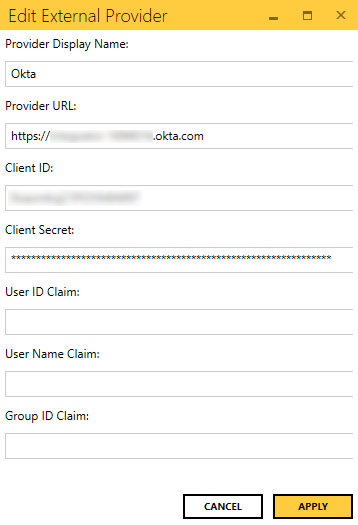
Use your Okta URL for the Provider URL. For example, "https://{yourDomain}.okta.com".
Use the Client ID and Client Secret from the Client Credentials section of the General tab.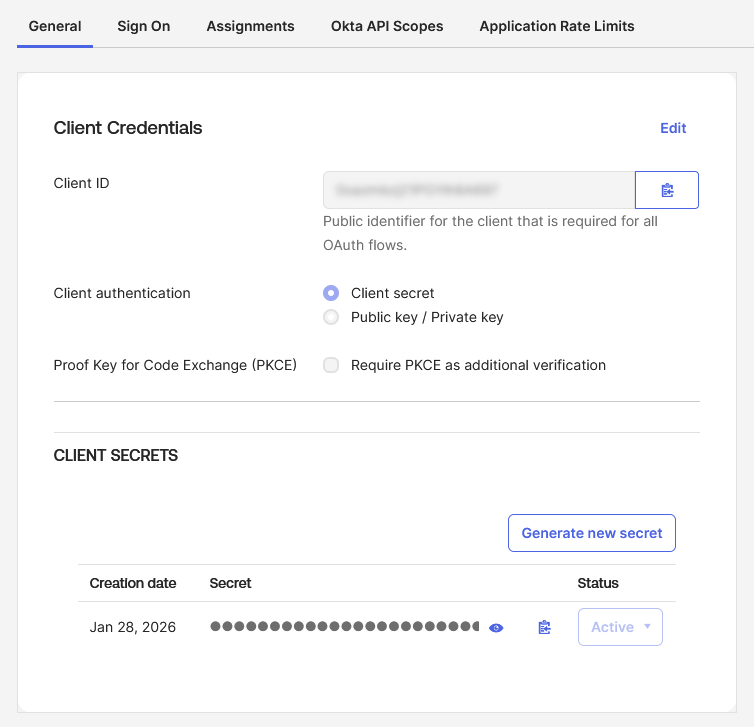
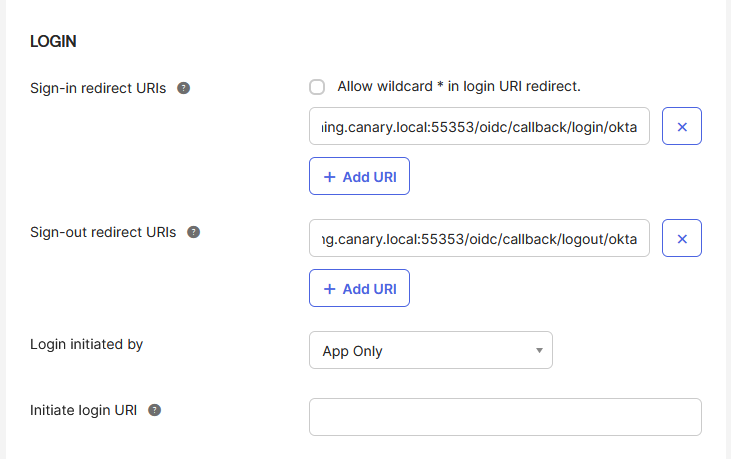
- Add Login and Logout Redirect URIs to point the identity provider back to the Identity service on the Canary server (e.g. https://canary-server-name:55353/oidc/callback/login/provider-display-name). These redirect URIs will be used specifically for the Excel Add-in and Canary Admin client. Axiom will use separate redirect URIs created in the next step. The URI needs to be all lowercase.
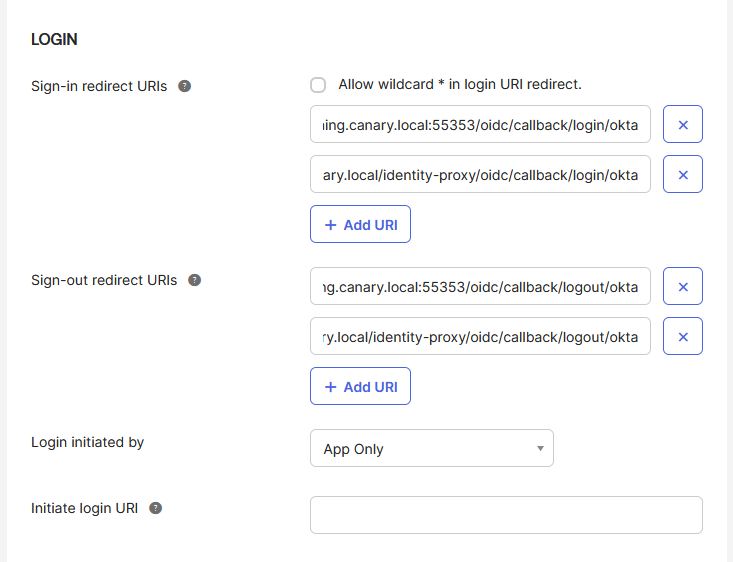
- Add a Redirect URI for Axiom. Starting in v25, Axiom utilizes a reverse proxy which allows the Identity service to use the same port as Axiom, 443, to communicate with the Identity service. (e.g. https://canary-server-name/identity-proxy/oidc/callback/login/provider-display-name) The URI needs to be all lowercase.
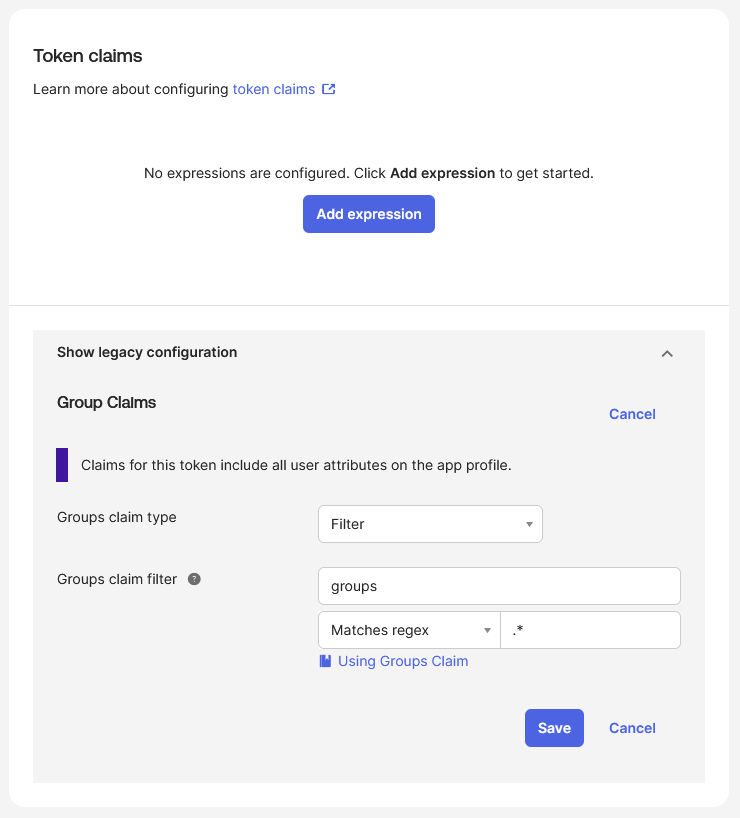
- In the Sign On tab, configure the groups claim for the application. The regex filter ".*" will return ALL groups a user is in.
- Navigate back to the Identity tile and click AUTHENTICATE.

If the information is correct, the following message should appear:
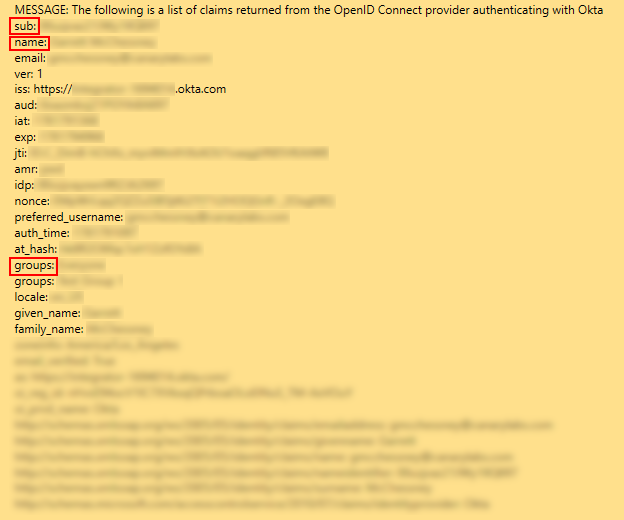
- Navigate to the Messages tile and look for the following Info message at the top of the list. This will contain the claims that are needed to complete the OpenID Connect provider.
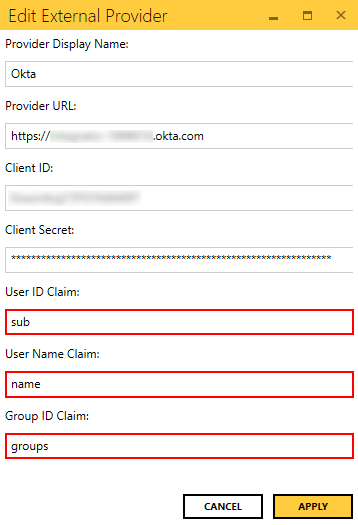
- Navigate back to the Identity tile and EDIT the newly created OpenID Connect provider.
- Fill in the User ID Claim, User Name Claim, and Group ID Claim using the claim labels (not claim ID's) from the message then click APPLY.
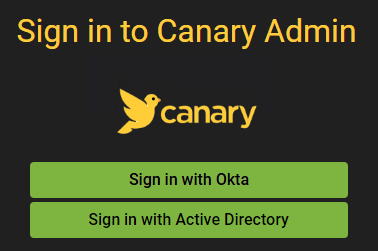
Once configured, the user will see the available option when logging into the Canary Admin, Axiom, or the Excel Add-In.
If wishing to then disable Windows AD, uncheck the box 'Enable Active Directory' within the Identity tile>Configuration>Providers screen.
 Print this page