
Centralized Virtual Views (version 26)
Starting in v26.6, Virtual Views can have their configurations stored in a MSSQL database.
The purpose of this functionality is to have a central repository where ALL virtual view configurations can reside and be deployed to any Views services as needed. In this way, models can be replicated across multiple Views services without having to export/import model rules from server to server. Similarly, when updating a virtual view that is used in multiple Views services, users do not have to institute the same change repeatedly. Changes can be made from any Views service hosting the model which are then propagated to any other Views service hosting the same model.
Each Views service participating in the centralized repository must be configured to connect to the database with a user account that has read/write/create permissions.
Implementing on a New System
- Open the Canary Admin and navigate to the Views>Configuration>Settings screen.
- Under the MODEL DATABASE section, select the MSSQL option from the Database Provider drop-down menu.
- Fill in the Server and Database Name.
- Provide a username/password to connect to the database or configure the Views service to run on an account which has the appropriate permissions and enable Integrated Security. If the user provided is a domain user, check the box, Is Domain User. APPLY changes.
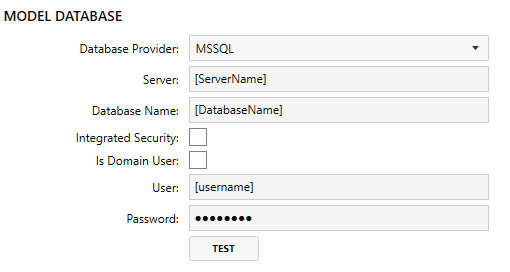
Starting in v26.8, external SQL databases are managed in the Admin tile>Database Connections screen. Once configured, the user can choose the Custom option from the Database dropdown menu and select the appropriate Connection.
When a virtual view is created, its configuration will be stored in the MSSQL database instead of a local default SQLite file. See How to Create a Virtual View.
Importing Virtual Views on Ancillary Views Servers
Repeat the steps above as needed for any ancillary Views service that will need to connect and import virtual views from the database. Once the connection is configured:
- Navigate to the Views home screen and click the down-arrow from the Views window.
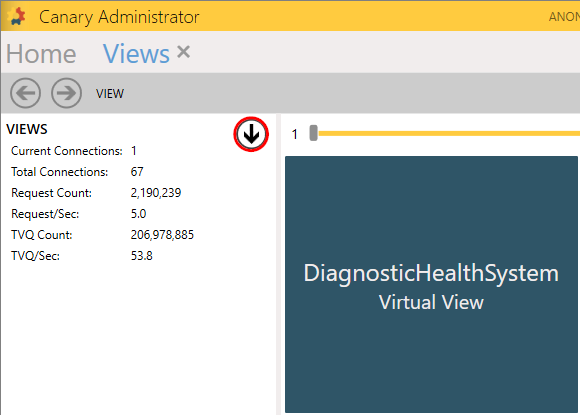
- Click IMPORT SHARED VIEW and choose a View Name from the drop-down list to import.
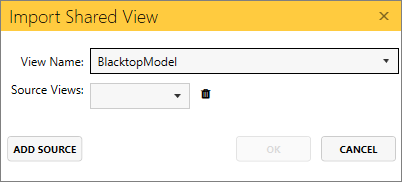
- Add the appropriate Source Views then click OK.
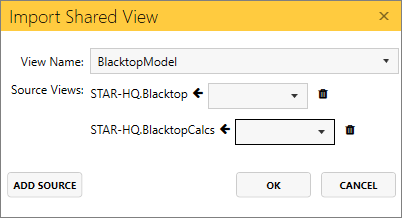
- The Edit screen will appear allowing the user to make additional changes if needed. If changes are made, they will be reflected in each Views service where the model is present. Each Views service checks for updates every 30 seconds. If no additional changes are needed, click APPLY and CLOSE.
Implementing on an Existing System
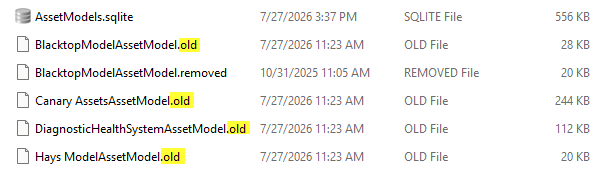
If implementing centralized Views on an existing system where virtual views already exist, the user must first rename the deprecated SQLite files where the configurations were stored prior to v26.6.
- Navigate to %ProgramData%\Canary\Views\Plugins
- Replace".old" with ".sqlite" from any asset model wishing to be stored in the database.
- Configure the Views service to use the MSSQL option following the same steps as a new system.
- When configuring ancillary Views servers, ALL virtual views will be removed when the MSSQL option is applied. Virtual views in these systems must be imported using the U/I demonstrated in the steps above.
Removing a Virtual View
Users can remove a virtual view from the system by selecting the view then selecting REMOVE from the VIEW OPTIONS menu.
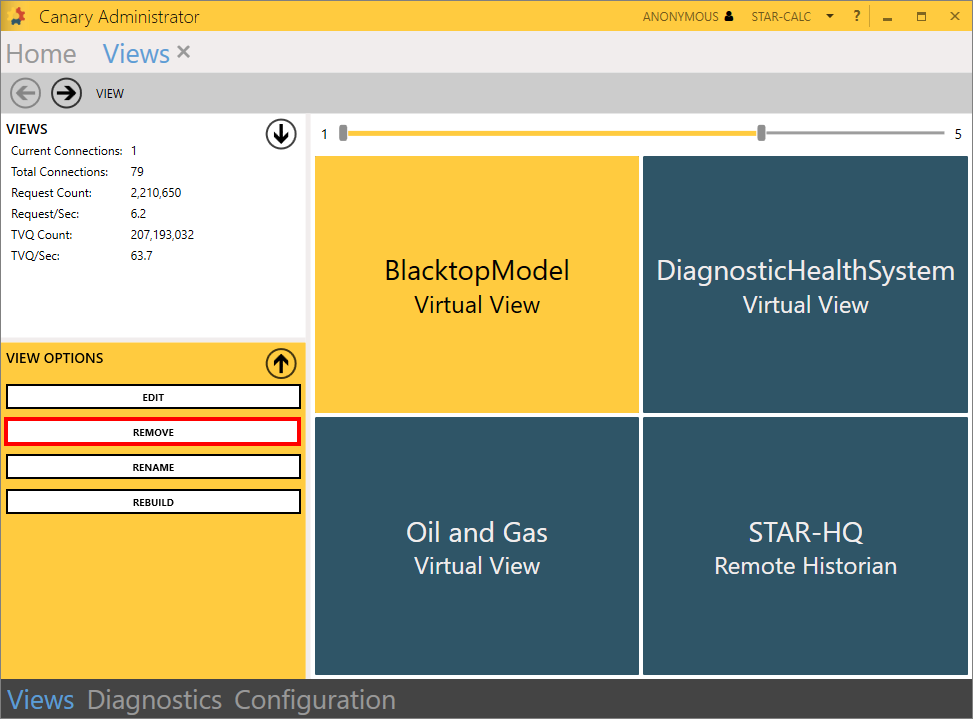
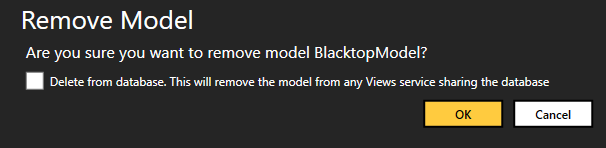
Click OK to remove it from the local Views service or check the box to delete it from the database and remove it from ALL connected Views services.
 Print this page