
Identity Tile (version 26)

- Total Users – total number of internal Canary users created within the Identity service
- Active Users – total number of Canary users who are currently logged in to a Canary application (Canary Admin, Axiom, or Excel Add-In)
- Identity Providers – total number of providers enabled/configured (Windows AD, Anonymous, Azure, etc.)
- Applications – total number of client applications configured. Default is three (Canary Admin, Axiom, and Excel Add-In).
- Version – versioning number of the Identity service
The Identity service is responsible for managing the users/groups that connect to the Canary system. By supporting several identity providers (IDP), the Identity service authenticates those users whenever they log in using a Canary application (Canary Admin, Axiom, or Excel Add-In). Additionally, the Identity service contains all the access control lists (ACLs) that other Canary services utilize when needing to authorize a particular user. API tokens are also generated here for use in other Canary services.
Security Screen
Access Control Lists
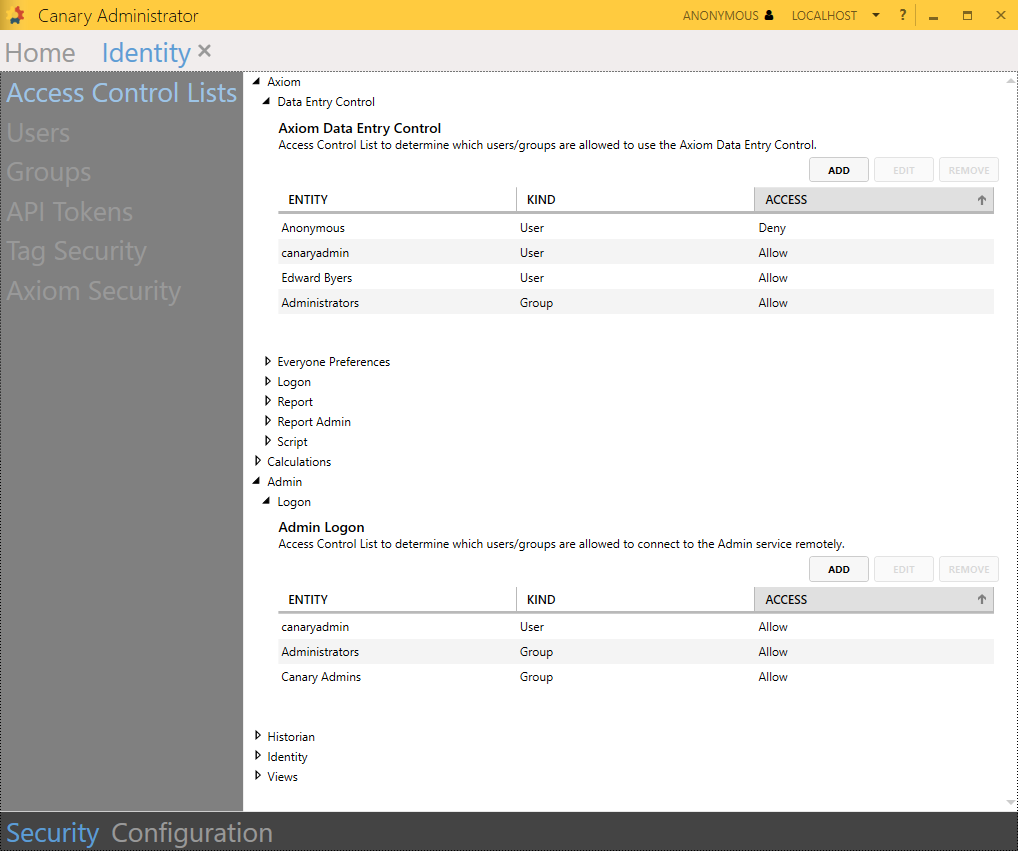
The Access Control Lists screen is used to allow/deny access to specific functions for users/groups. The ACLs only contain internal "Canary" users/groups which are mapped to an external user/group coming from an IDP or an API token. A user will first appear on an ACL in a Request state if they do not have prior access, wherein they can be allowed or denied.
- ADD - allows a Canary user/group to be added to the ACL
- EDIT - allows the access state of the Canary user/group to be changed to Allow/Deny
- REMOVE - removes the Canary user/group from the ACL
| ACL | Description |
| Axiom-Data Entry Control | Controls who has access to the Data Entry Control in Axiom (See Data Entry Control). By default, the Administrators group is allowed. |
| Axiom-Everyone Preferences | Controls who is allowed to change the Everyone level preferences within Axiom (See Preferences). By default, the Administrators group is allowed. |
| Axiom-Logon | Controls who is allowed to log in to Axiom. By default, Everyone and the Anonymous user are allowed. |
| Axiom-Report | Controls who is allowed to create Automated Reports in Axiom. By default, Everyone and the Anonymous user are allowed. |
| Axiom-Report Admin | Controls who is allowed to administer Automated Reports in Axiom. Admins can view, run, edit, and delete reports owned by any user . |
| Axiom-Script | Controls who has scripting capabilities in Axiom and makes the controls that utilize scripting visible. By default, the Administrators group is allowed. |
| Calculations-Event Access | Allows a remote Views service to read events from Calculations. The remote Views service must be configured to use an API Token which is mapped to a Canary user. |
| Admin-Logon | Controls who can connect remotely to the Admin service using the Canary Admin client. By default, the Administrators group is allowed. |
| Historian-Access | Controls who can connect to the Historian using a remote Views service. The remote Views service must be configured to use an API Token which is mapped to a Canary user. |
| Identity-Remote Admin Access | Controls who can remotely administer the Identity service. This is only used in the migration process when upgrading a server containing Axiom and/or Views that is remote from the Identity service from a pre-24 version. By default, a preconfigured Canary user, Installer Migration Service Account, is placed on this list. This user is linked to an API token which is used during the installation process. |
| Identity-User Impersonation | Controls who is allowed to impersonate other users. This is only used if the Axiom service is installed remotely from the Identity service. In this case, the Axiom service uses the account to impersonate other users when running Automated Reports. By default, a preconfigured Canary user, Axiom Report Service Account, is placed on this list. This user is linked to an API token which would need added to the remote Axiom service within the Axiom tile>Configuration>Settings>Identity Application Token. |
| Identity-User Query | Controls who is allowed to query users from the Identity service for reassigning Axiom Automated Reports. Users must also be granted access on the Axiom-Report Admin ACL. |
| Views-Access | Controls who can access data within the Historian. (Tag Security is then applied on top of this controlling which data the user/group has access to.) By default, Everyone and the Anonymous user are allowed. |
| Views-Bypass Security | Controls who can bypass Tag Security. |
Users
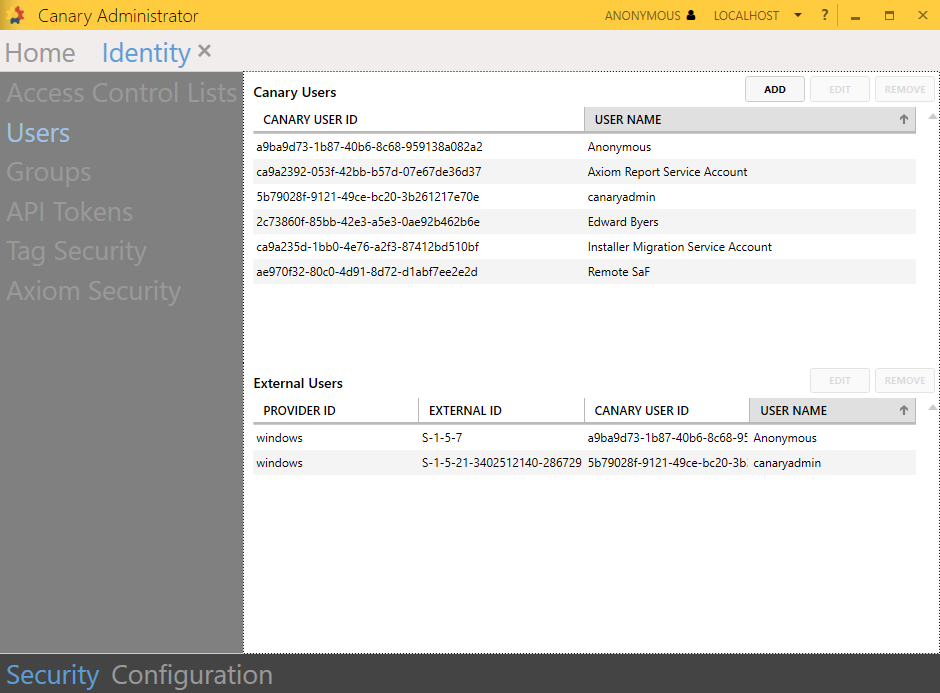
The Users screen is used to configure internal "Canary" users and map them to an external username or API token. When a user initially logs in with a Canary client application (Canary Admin, Axiom, or Excel Add-In) an internal Canary user is generated on their behalf and linked to their external account. The Anonymous user is also available if the Anonymous provider is enabled from the Configuration>Providers screen. Any user/client that authenticates anonymously is mapped to the Canary Anonymous user. In the same way, there is a well-known Anonymous API token (11111111-2222-3333-4444-555555555555). This API token is automatically mapped to the Anonymous user. Anonymous authentication or logon is an option in Identity that is disabled by default. When this option is enabled, Axiom, Admin, and Excel add-in clients can logon anonymously. Also, the well-known API token can be used in API calls. When any client uses the Anonymous user, the Anonymous user will be checked in the relevant ACLs for the requested function. If the Anonymous authentication option is disabled, then the Anonymous user will not work for any function regardless of the presence of the Anonymous user in the relevant ACLs.
Canary Users
- ADD - adds a new Canary user
- EDIT - modifies the selected Canary user if wishing to change the user name. If the original user name is already on an ACL, it will be automatically updated to match the new user name.
- REMOVE - removes the selected Canary user. Removing a user from this list will, in turn, remove the corresponding external user it is mapped to from the External Users list. Similarly, the user will be removed from any ACL they were a part of.
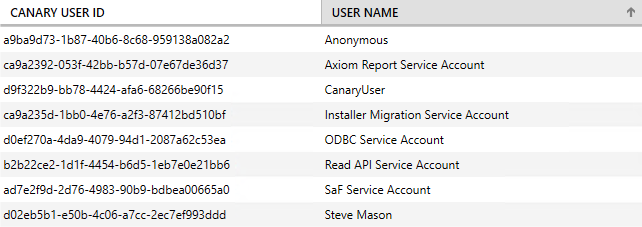
- CANARY USER ID - unique identifier of the Canary user
- USER NAME - friendly name of the Canary user. If two external users would have the same name, the Canary name would be incremented by 1 for the 2nd user.
External Users
- EDIT - modifies the selected external user if wishing to map it to a different Canary user
- REMOVE - removes the selected external user. Doing so does NOT remove the corresponding Canary user it is mapped to from the Canary Users list.

- PROVIDER ID - identity provider (IDP) of the external user
- EXTERNAL ID - unique identifier of the external user as provided by the IDP
- CANARY USER ID - unique Canary identifier the external user is mapped to
- USER NAME - friendly Canary name the external user is mapped to
Groups
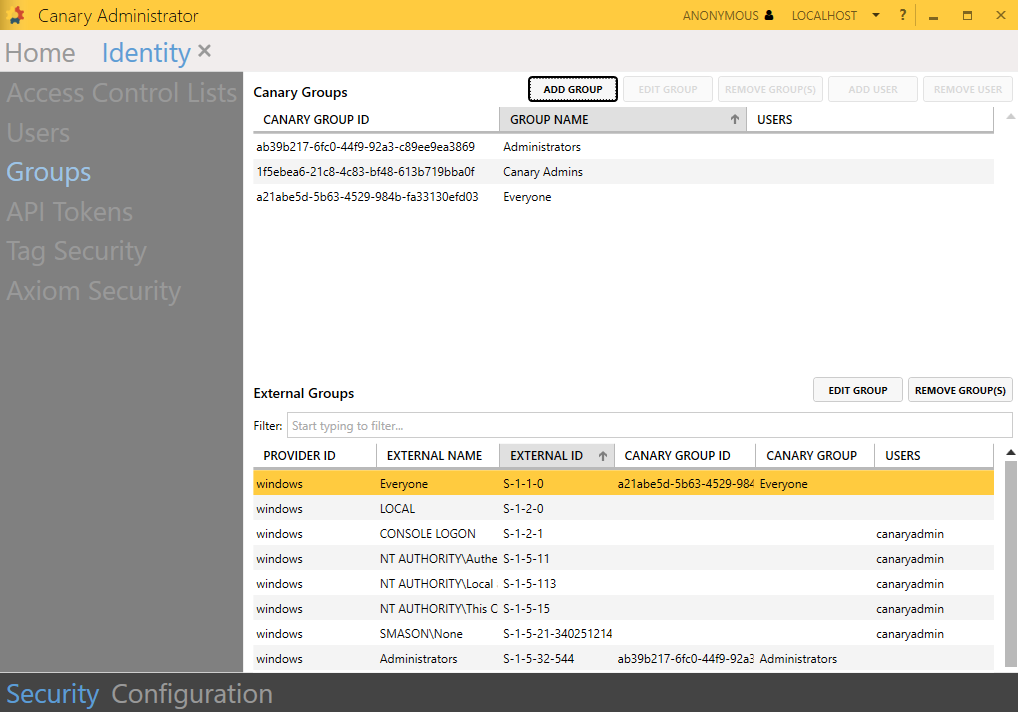
The Groups screen is used to create "Canary" groups and map them to an external group coming from the IDP. When a user logs in to Canary, the Identity service discovers ALL of the external groups that user is a member of. Canary groups can be created as needed and linked to one or more of these external groups. Multiple external groups can be linked to a single Canary group. By default, Canary uses the Everyone group which includes ALL Canary users, except Anonymous, and the domain Administrators group.
Canary Groups
- ADD GROUP - adds a new Canary group
- EDIT GROUP - modifies the selected Canary group if wishing to change its name. Group names will also be updated with this change if they already exist in an ACL.
- REMOVE GROUP(S) - removes the selected Canary group(s)
- ADD USER - adds a Canary user to the group. This may be needed if wishing to add a user who is not a member of the external group the Canary group is mapped to.
- REMOVE USER - removes a user from the Canary group

- CANARY GROUP ID - unique identifier of the Canary group
- GROUP NAME - name of the Canary group
- USERS - list of Canary users associated with the Canary group. These users are in addition to those in the external group (if an external group is mapped to the Canary group).
External Groups
- EDIT GROUP - modifies the selected external group if wishing to map it to a new or different Canary group
- REMOVE GROUP(S) - removes the selected external group(s). Groups will be rediscovered if a user who is a member of them signs into Canary again.
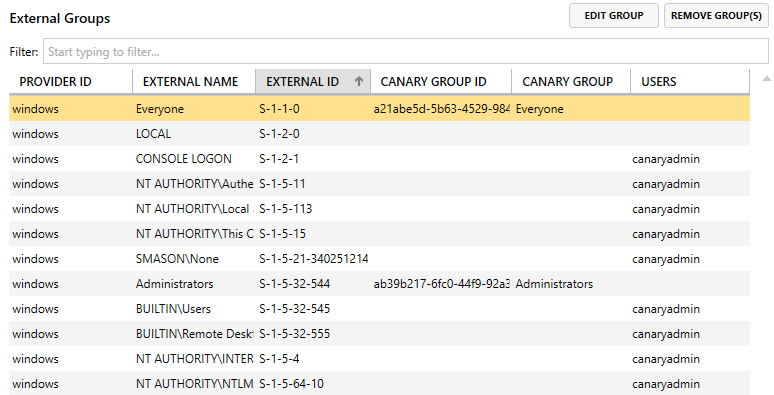
- PROVIDER ID - provider of the external group
- EXTERNAL NAME - name of the external group, if available from the IDP
- EXTERNAL ID - unique identifier of the external group as provided by the IDP
- CANARY GROUP ID - unique identifier of the mapped Canary group
- CANARY GROUP - name of the mapped Canary group
- USERS - list of external users associated with the external group who have logged in using one of Canary's client applications
API Tokens
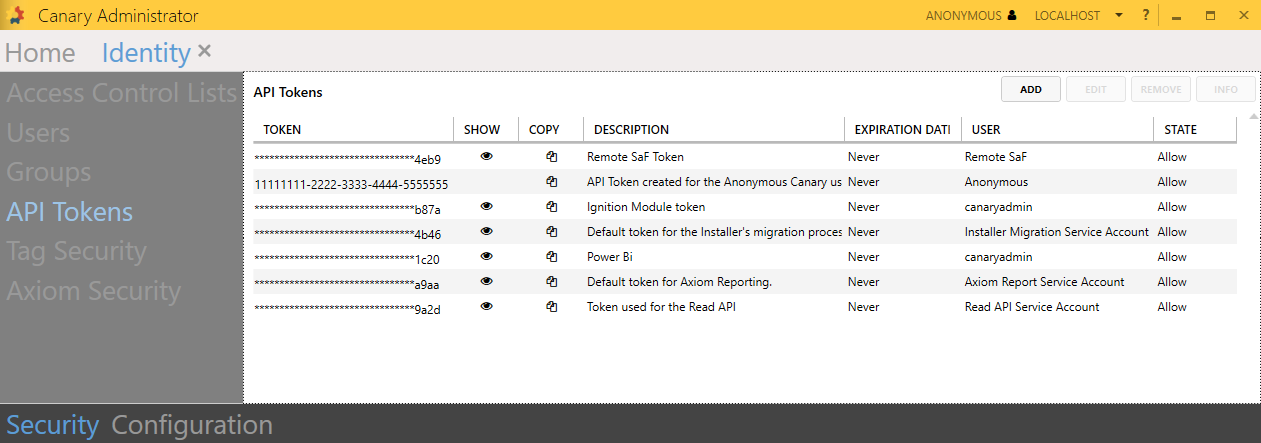
The API Tokens screen is used to create/modify API tokens and map them to existing Canary users which can be placed on an ACL for authorization purposes. Tokens can be long-lived, set to expire automatically, or manually revoked at any time.
- ADD - adds a new API token
API Token Description - description of what the token is used for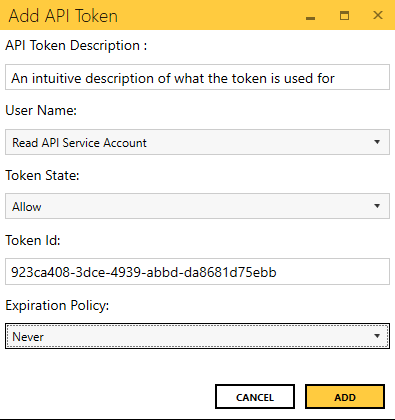
User Name - Canary user the token will be mapped to
Token State - set to Allow or Deny
Token Id - uniquely generated token. Tokens can be edited, if necessary, using hexadecimal characters 0-9 and a-f.
Expiration Policy - set to Never or specify a Date - EDIT - modifies the selected API token
- REMOVE - removes the selected API token
- INFO - displays who created the token and its description
See How to Create an API Token for more details.
Tag Security
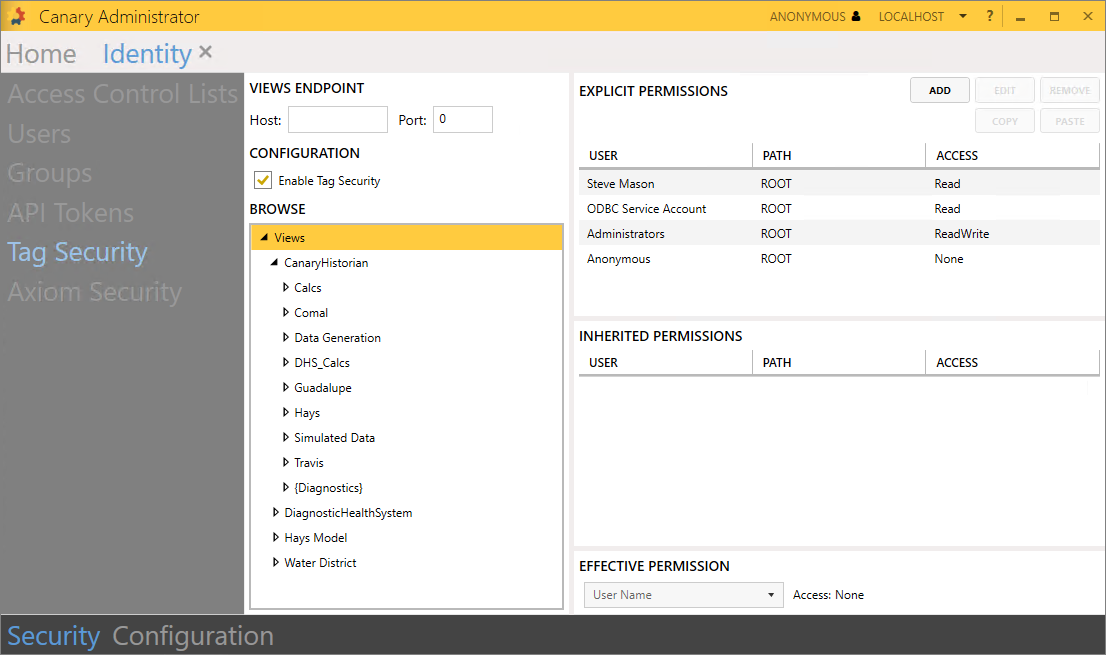
The Tag Security screen is used to set Read/Write permissions on any view (Historian view or virtual view) available in the Views service when tag security is enabled. Each view in the BROWSE window can be expanded to set permissions at lower levels, all the way down to the metric tag name. Canary uses a period (.) in the tag path to indicate a new level or branch.
VIEWS ENDPOINT
The Identity service can connect to multiple Views services individually to set permissions for each one. This is necessary in an architecture that requires multiple Views services in a single network. Only one Identity service is needed for one network; therefore, it must be able to connect to all of them.
- Host - machine name/IP address of the Views service Identity will connect to
- Port - port of the remote Views service the Identity service connects to. Use 55321 to connect to the gRPC API endpoint pictured below.

CONFIGURATION
- Enable Tag Security - check the box to enable Tag Security. Doing so will apply the permissions that are configured within the BROWSE panel. Ensure permissions are properly set before enabling as this could prevent users from accessing data.
BROWSE
The BROWSE panel contains a hierarchical view of the entire tag structure available to the end user, including both local/remote Historian views and any virtual views that may be created. Each view can be expanded to show lower subnodes within the model. Permissions can be applied at any level throughout the structure to restrict what the end user is able to see.
EXPLICIT PERMISSIONS
The EXPLICIT PERMISSIONS window displays the access a Canary user/group has at that particular node/level selected in the BROWSE panel.
- ADD - sets permissions for a given Canary user/group for the selected node
- EDIT - modifies the permissions for the selected Canary user/group
- REMOVE - removes the selected Canary user/group
- COPY - copies the selected Canary user/group and its access to the clipboard
- PASTE - pastes the copied Canary user/group and its access from the clipboard
Canary users/groups can be rearranged within the panel using a click-and-drag. Order matters. If a user is explicitly added and is also a member of an explicit group that is already on the list, then the user should be listed above the group. If not, the message "Unreachable Permission Detected!" will appear. Similarly, if a user is a part of two groups, the first group to appear in the list will take precedence over the second.
INHERITED PERMISSIONS
The INHERITED PERMISSIONS window displays the access level for any Canary users/groups that have been passed along from a parent node/level. Explicit permissions will always override any inherited permissions for a user/group.
EFFECTIVE PERMISSION
Using the drop-down box, select a Canary user from the list to see what access they have at that particular node/level.
Axiom Security
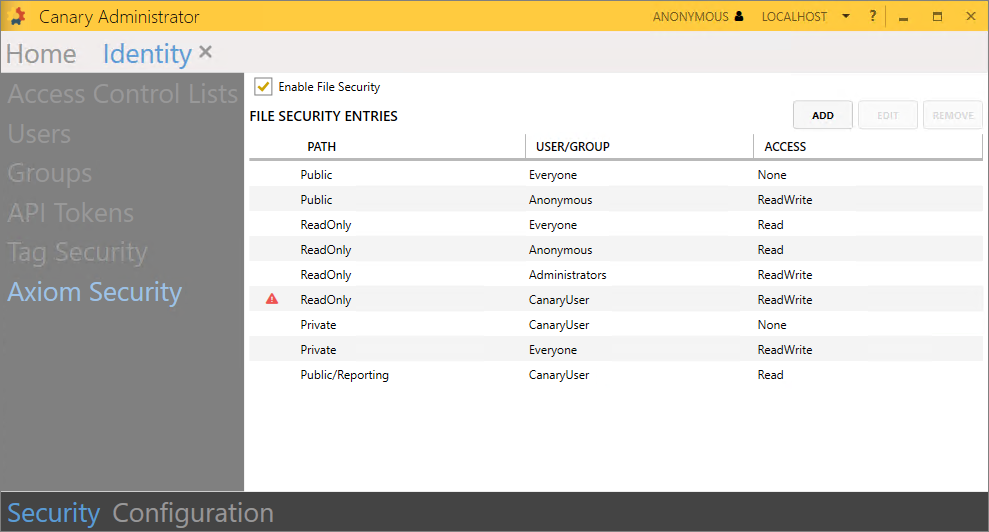
The Axiom Security screen is used to enable and set Read/Write permissions for Axiom's folder structure. There are three default folders a user can access (Public, ReadOnly, Private) and subfolders can be created underneath these. By default, Everyone and Anonymous have ReadWrite access to the Public folder. Everyone has ReadWrite access to their own Private folder. Everyone and Anonymous have Read access to the ReadOnly folder. The Administrators group has ReadWrite access to the ReadOnly folder.
Permissions can be reordered using a click-and-drag method within each unique PATH category. Permissions are evaluated and assigned from the top down. If a permission is unreachable, a warning will appear indicating so. In that case, the faulted permission will need to be reordered.
Permissions can be added, edited, and removed for any folder and its subfolders.
- Enable File Security - enables/disables Axiom file security. If disabled, Everyone and Anonymous will have ReadWrite access to all directories.
- ADD - opens the Add File Security Entry menu to add a folder permission. Subfolders are separated with a forward slash ( / ).
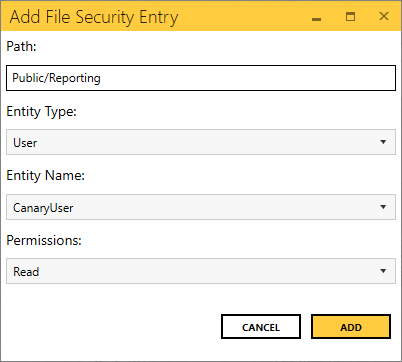
- EDIT - opens the selected File Security Entry to make changes to an existing permission
- REMOVE - deletes the selected File Security Entry
Configuration Screen
Providers
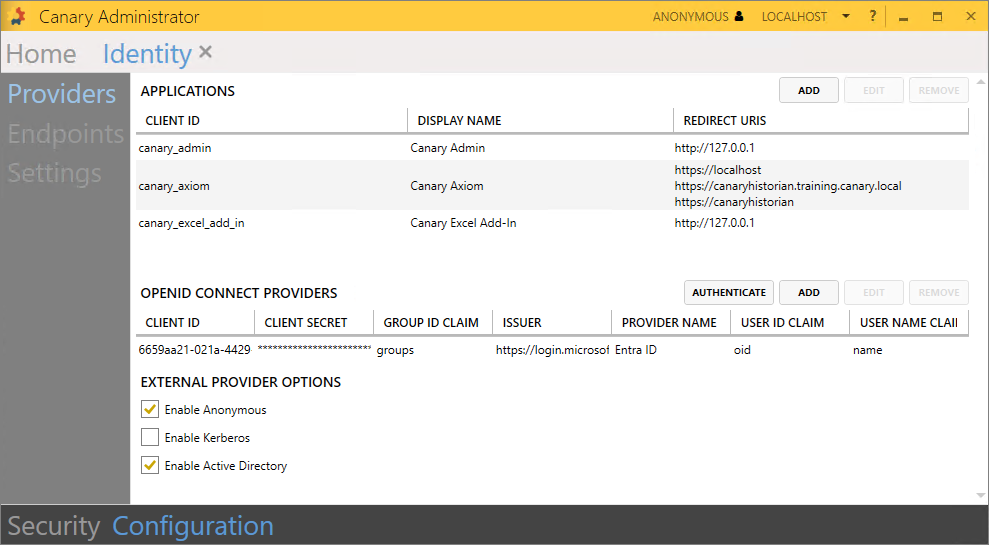
The main purpose of the Providers screen is to configure the identity provider(s) users will use to authenticate and connect to the Canary system. By default, the Identity service uses Windows AD but supports several others using OAuth 2.0/OpenID Connect. (See How to Add an OpenID Connect Provider.)
APPLICATIONS
There are three client applications that require authentication upon connecting:
- Canary Admin
- Axiom
- Excel Add-In
Clients connecting via API or ODBC will use an API token. See How to Create an API Token.
Upon connecting with one of these applications, the user will be presented with a login screen where they will choose how to authenticate based upon the IDPs configured.

In the screenshot above, the user is given the choice between Windows AD and Anonymous when they log in to Axiom as both are enabled within the Identity service.
- ADD - creates a new client application. Realistically, this would only be needed in an architecture where two Axiom services (a Prod and Dev environment perhaps) are pointed to the same Identity service (which is to be expected as only one Identity service is needed per network). In that case, each Axiom client would have its own unique Client ID and Redirect URI. (There is no scenario where multiple Canary Admin or Excel Add-In clients are needed.)
Axiom clients use a Web application type, whereas the Canary Admin and Excel Add-In use the Native application type.
- EDIT - modifies the selected client application. Users can edit a client application if wishing to change the Display Name or Redirect URI (Axiom only) but should avoid changing the Client ID unless there are multiple Axiom clients which need to be unique.
- REMOVE - removes the selected client application
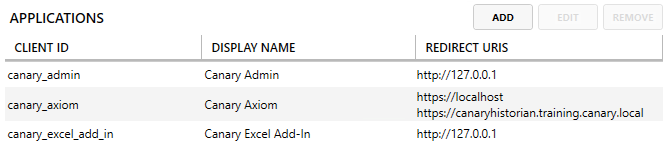
- CLIENT ID – the ID the client uses when connecting to the Identity service. Client ID’s must be unique.
- DISPLAY NAME – the name that is presented to the user when connecting with the client application
- REDIRECT URIS – the URI the user is redirected to upon connecting. The Canary Admin and Excel Add-In use the loopback IP address of 127.0.0.1 as the client is local to their machine and should not need changed. Axiom, on the other hand, is web-based. If wishing to use a different URI for users to connect to, it can be included along with the default https://localhost and https://[serverName] by editing the Axiom client application. (*Note, it is expected that the new URI is a legitimate domain which users can access.)
OPENID CONNECT PROVIDERS

Displays any external OpenID Connect Providers that have been added along with its properties. By default, Canary uses Windows AD so no providers will be listed here until one has been configured. (See How to Configure an OpenID Connect Provider for more information.)
- AUTHENTICATE – authenticates with an OIDC provider to get claims once the provider has been added
- ADD – adds a new OIDC provider
- EDIT – modifies the selected OIDC provider
- REMOVE – removes the selected OIDC provider
Selecting the ADD or EDIT button will open the following window for the user to configure the OIDC provider.

- PROVIDER DISPLAY NAME – name of the external IDP. This does not have to match anything coming from the IDP but should be intuitive so that it is obvious who the IDP is.
- PROVIDER URL – endpoint of the external IDP used for OIDC authentication
- CLIENT ID – unique identifier of the external identity application
- CLIENT SECRET – secret of the external identity application
- USER ID CLAIM – name of the user ID claim used by the external IDP
- USER NAME CLAIM – name of the user name claim used by the external IDP
- GROUP ID CLAIM – name of the group ID claim used by the external IDP
EXTERNAL PROVIDER OPTIONS

- Enable Anonymous – (Disabled by default) allows users to log in anonymously without providing credentials
- Enable Kerberos – (Disabled by default) passes in the user’s current credentials they used to sign in to their machine
- Enable Active Directory – (Enabled by default) allows the user to authenticate using their Windows credentials
Endpoints
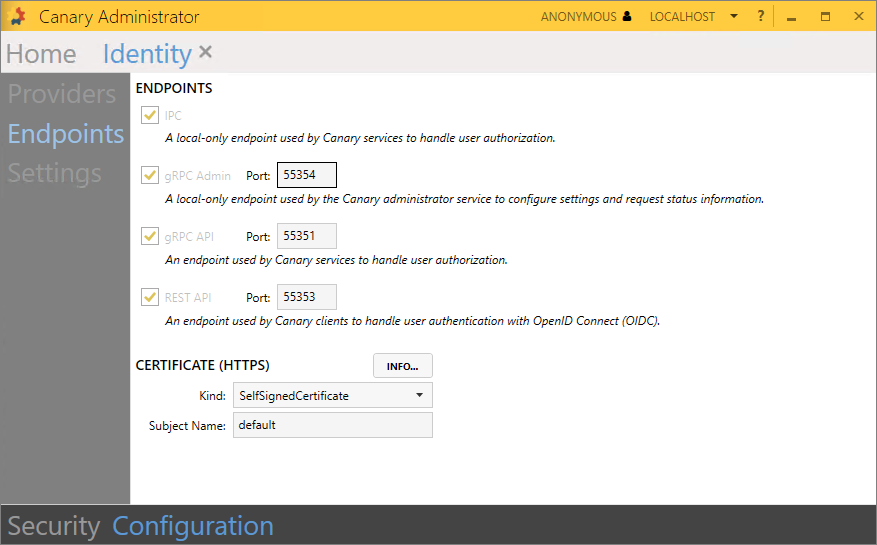
- IPC - endpoint used by other Canary services that are local to the Identity service to handle user authorization
- gRPC Admin (55354) - endpoint used specifically by the local Admin service for configuring settings and requesting status information
- gRPC API (55351) - similar to the IPC endpoint, this endpoint is used by other Canary services that are remote from the Identity service to handle user authorization
- REST API (55353) - the Identity service's OpenID Connect endpoint. All authentication goes through this endpoint regardless of whether the user is authenticating with an external OpenID Connect provider or not.
CERTIFICATE (HTTPS)
By default, Canary generates a self-signed certificate for its services that require a secure connection. These can be reconfigured if wishing to use a different certificate that has been installed on the server. Clicking the INFO button will open a window displaying the certificate's details.
- Kind - the kind of certificate the Identity service is configured to use
- SelfSignedCertificate - this is the default certificate that Canary uses. It is stored in the Local Computer\Personal store.
- Certificate - use this option if wishing to upload your own certificate. Doing so will present more options to configure.

- Store Name - the local computer store name where the certificate is installed
- Find Type - criteria by which the Identity service searches for the certificate
- FindBySubjectName
- FindByThumbprint
- FindByTemplateName
- Subject Name - set to default if using the SelfSignedCertificate option. Otherwise, the value of the Subject, Thumbprint, or Template name if using the Certificate setting.
Settings
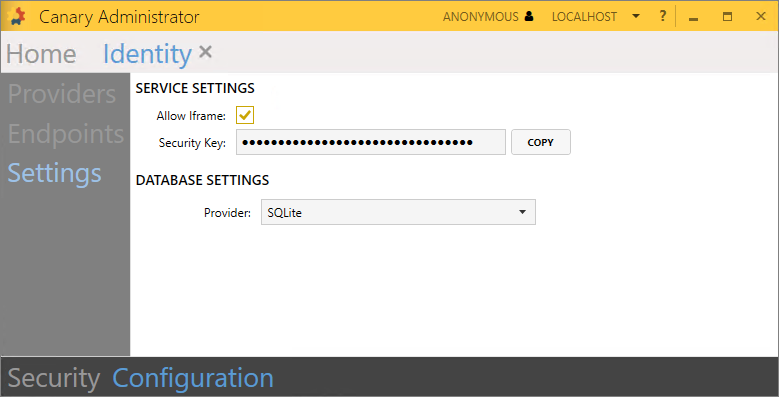
SERVICE SETTINGS
- Allow Iframe - allows the login screen to be embedded in an Iframe
- Security Key - used for encrypting and signing tokens the Identity service creates. There is no reason to change this key; however, in the event you want to install a redundant Identity service, this key can be copied to the other Identity service as both will need to use the same key.
DATABASE SETTINGS
- Provider -
- SQLite - by default, the Identity service stores its information regarding users/groups/ACLs/API Tokens in a SQLite database (C:\ProgramData\Canary\Identity\identity.sqlite).
- MSSQL - select this option if wishing to install a redundant Identity service. In this case, both Identity services must use the same security key and be pointed to the same MSSQL database.

- Server - name of the server where the MSSQL database is located
- Database Name - name of the database where the Identity service will store its information
- Integrated Security - if checked, the Identity service will connect to the database using the account on which the Identity service is running
- Is Domain User - determines if the configured user is a domain user
- User/Password - credentials of the user that has read/write access to the database
- TEST - tests the connection to the database using the provided credentials.
 Print this page